# Basic Operation
# Creating a New Configuration
The editor starts up with the factory default configuration. You can always return to factory default by selecting **File / New** in the menu.
In the upper left corner of the [Globals Tab](https://docs.rjmmusic.com/books/mastermind-editor-manual-46/page/globals-tab "V4:Globals Tab"), there is a **Model** parameter. This is where you can select which model of RJM product you're using. In the Mastermind editor, you can choose from *LT/7, PBC/6X* and *PBC/10*. In the Mastermind GT Editor, you can choose from *GT/10*, *GT/16* and *GT/22*
*[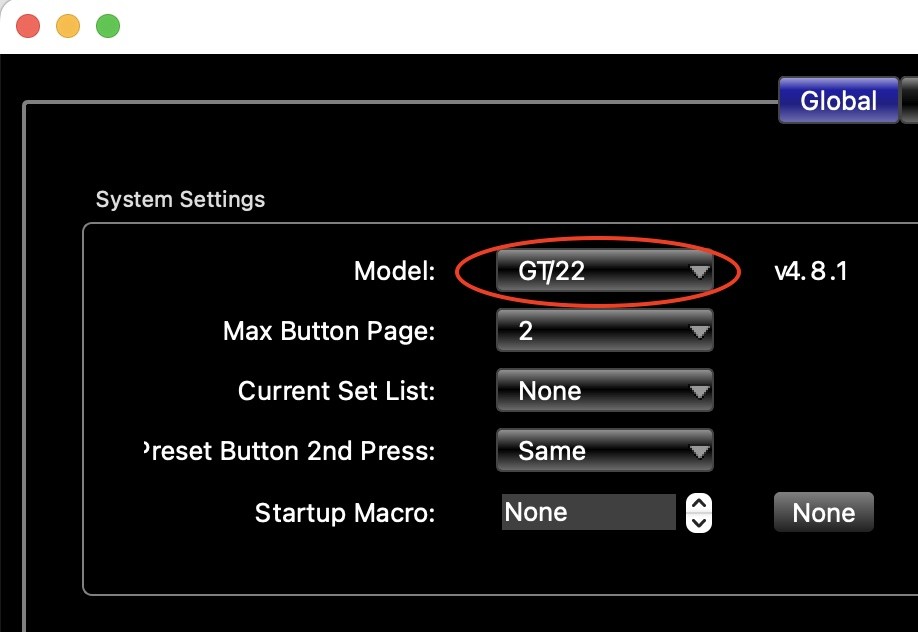](https://docs.rjmmusic.com/uploads/images/gallery/2022-05/modelparam.jpg)*
Selecting a new value for **Model** will affect which settings are loaded when selecting **File / New**. When you change the selected model, you will also be prompted to revert to factory settings for the newly selected model. In most cases, it's recommended to say 'Yes' when prompted so that you start with settings that are known to work on your device.
# Loading and Saving Settings
## Loading Settings
The **File / Load** menu option brings up a file dialog, which lets you select a settings file to load. Settings files always have a **.rjs** extension.
## Saving Settings
The **File / Save** menu option saves the currently loaded file. If no file has been loaded, a file dialog pops up, asking you to name the file.
The **File / Save As** menu option brings up a file dialog where you can choose to save the settings under a new file name.
The required **.rjs** extension will automatically be appended to the filename.
## Exporting Settings
The **File / Export** menu option brings up a dialog that allows you to save a portion of your settings. This is useful if you need to move certain presets, sysex messages, macros, etc. to another device.
[](http://www.rjmmusic.com/wiki/index.php?title=File:ExportDialog.png)
Use the checkboxes to select which items you wish to write to the file, and set the upper and lower numbers to be transferred (if applicable). Once you click OK, you will be prompted for a filename where the settings will be saved.
When you load an exported file, it will overwrite only the data that you specified when exporting the file. For example, you can copy the presets from one configuration to another by doing this:
1. Load the file that has the presets you want to copy
2. Use the **Export** option to save only the presets
3. Load the file where you want the presets to be copied
4. Load the file exported in step 2
This will overwrite only the presets in the original file with the new preset list.
# Transferring Settings Between Device and Computer
The Mastermind can connect to a Mac or PC computer using a standard USB B cable, often known as a USB printer cable. When connected, the device will appear as a standard MIDI device. The first time it's plugged in, it may take a while to appear as the drivers install. The standard system drivers are used, so you don't need to provide a driver file.
The **Transfer** menu of the editor contains options that allow the editor to communicate with the device. The options are as follows:
- Connect To Device
- Read Settings From Device
- Write Settings From Device
- Write Changes To Device
It's important to make sure that at least your editor version and firmware version match, at least in the first two numbers. For example 4.8.0 and 4.8.1 will work together, but 4.7.0 and 4.8.0 will not. The below menu options won't work correctly if the versions are not close enough.In general, it's best to keep up to date with the latest firmware and editor versions.
## Connect To Device
This option simply checks to see if the device is connected. If it is, a green "Connected" message appears in the upper right corner of the editor. If a device is not found, an error message is displayed.
This step is optional - the editor will always make sure the device is connected before transferring settings.
## Read Settings From Device
Selecting this option reads the settings from the device into the editor. This will overwrite any settings you have in the editor, so be sure to save your settings if needed.
## Write Settings From Device
This option writes all of your settings from the editor to the device, overwriting any settings on the device.
## Write Changes To Device
This option also writes your settings from editor to device, but only settings that have changed since they were last written to the device. This option is often faster than **Write Settings To Device**, but the speed depends on the extent of changes performed. The first time you write changes during an editing session, it will take longer because it writes all of your settings, but subsequent writes will be faster.