# Mastermind Editor Manual
Documentation for the Mastermind Editor software. This includes the editor for the Mastermind GT, Mastermind LT and Mastermind PBC models.
This manual currently reflects version 5.2.x of the Mastermind Editor
# Introduction
# About the Editor Software
The Mastermind GT is a very advanced MIDI controller with extensive capabilities and an LCD over every button. The Mastermind PBC is a pedalboard based audio switcher that uses the same "brains" as the Mastermind GT, giving it similar MIDI capabilities. And the Mastermind LT is a small, low cost MIDI controller using the same core as the Mastermind PBC. All of these devices are able to connect to a PC or Mac using a standard USB connection and communicate with our editor software.
The editor software is able to edit settings and transfer those settings to and from the GT, LT and PBC. On the Mastermind GT, the editor permits much faster editing using a familiar user interface. The editor does the same for the Mastermind LT and PBC, but also unlocks the full power of these units, allowing the user perform far more editing tasks than is possible using the on-board editing.
# System Requirements
The Mastermind GT, LT and PBC editor can run on a Windows PC or a Macintosh running OS X.
**Windows:**
- Windows 7 or later, 32 or 64-bit
- 2GB RAM
- One free USB port
- A USB cable that ends in a USB B connector, which is the square type that most printers use.
**Mac OS X:**
- OS X 10.13 (High Sierra) or later, 64-bit only
- 2GB RAM
- One free USB port
- A USB cable that ends in a USB B connector, which is the square type that most printers use.
# Installation - Mac
To install on a Mac OS X system, first download the file from the[ Downloads page](https://www.rjmmusic.com/downloads) on the [RJM Music website](http://www.rjmmusic.com/). Before downloading, make sure the correct product is selected in the bar above the list of releases.
*Important note: The editor version needs to match the first two numbers of your product's firmware version. For example, If you have firmware version 4.6.1, the editor needs to be version 4.6.x. In general, it's best to have the latest firmware and editor version. Your Mastermind's firmware version is displayed in bottom right corner of the main LCD display for 2 seconds on power up.*
Double-click the .dmg file that was downloaded, and it will open up a window showing the Editor app and a link to the Applications folder. Drag the editor app file to the Applications folder to install.
[](https://www.rjmmusic.com/wiki/index.php?title=File:MacInstall.png)
To run, open up your Applications folder, where you'll find the MMGTEditor or MastermindEditor file. Double click the file and the editor will start up.
# Installation - PC
To install on a PC system, first download the file from the[ Downloads page](https://www.rjmmusic.com/downloads) on the [RJM Music website](http://www.rjmmusic.com/). Before downloading, make sure the correct product type is selected in the bar above the list of releases.
*Important note: The editor version needs to match the first two numbers of your product's firmware version. For example, If you have firmware version 4.6.1, the editor needs to be version 4.6.x. In general, it's best to have the latest firmware and editor version. Your Mastermind's firmware version is displayed in bottom right corner of the main LCD display for 2 seconds on power up.*
Double-click the .zip file that was downloaded, and it will open up a window showing the editor MSI (installer) file. On some systems, the .zip file will automatically be extracted, in which case you will already have a MSI installer file. Double click this file to start the installation process. Follow the prompts to complete installation.
To run, go to the Start Menu and look for "MMGTEditor" or "MMEditor" under "All Programs" and select the editor app within that folder.
# Basic Concepts
# Buttons and Pages
One of the most important features of the Mastermind is the ability to redefine buttons. Each button can be configured for function, color and name, as well as quite a few other settings.
#### Button Types
There are many button types available, but they can be broken down into a few categories:
#### Preset and Bank Buttons
Preset buttons, as the name might suggest, load a preset when they're pressed. There are 4 to 6 preset buttons defined on a device by default, but there are 768 presets available. To allow the buttons to access all of the available presets, **Bank Up** and **Bank Down** buttons are used. The preset buttons will access presets starting at number 1 on power up. When you press **Bank Up**, the preset numbers shift so that the next group of presets is accessible. Each press of **Bank Up** with shift the preset numbers up again, and each press of **Bank Down** will shift the preset numbers down.
When you're selecting banks, the bank number will be displayed in the main display, and it will cycle through the names of all presets in the current bank, lighting the appropriate preset button. (On the Mastermind GT, the preset names will be displayed over each preset button and the LCDs over the preset buttons will flash). This allows you to preview the presets in the bank without needing to select a preset. The Mastermind will wait for you to select a preset before continuing. You can either stay in bank selection and continue to use the **Bank Up** and **Bank Down** buttons to move through the banks, or you can press a preset button to load that preset.
**Example:** A Mastermind PBC/10 has five preset buttons. When you power it up, the preset buttons select presets 1-5. Pressing Bank Up will shift the preset buttons to access presets 6-10. Pressing Bank Up again will shift the preset buttons to access presets 11-15. Pressing the second preset button at this time will select preset 12.
#### IA Buttons
Instant Access ("IA") buttons are multi-purpose buttons that perform a list of [actions](https://docs.rjmmusic.com/books/mastermind-editor-manual-46/page/actions "V4:Actions") when pressed. These [actions](https://docs.rjmmusic.com/books/mastermind-editor-manual-46/page/actions "V4:Actions") can send MIDI messages, turn on audio loops in the PBC, and many other functions. Typically, these buttons are used to perform small changes in a system. For example, turning on a loop on a switcher, or turning on an individual effect on a multi-effect processor.
IA buttons can be programmed to automatically turn on or off for any [preset](https://docs.rjmmusic.com/books/mastermind-editor-manual-46/page/presets "V4:Presets"), which makes it easy to set up pre-programmed combinations of effects.
#### Other Buttons
The other button types perform a wide variety of functions, including calling up certain menus, switching button pages and turning on [IA Mode](https://docs.rjmmusic.com/books/mastermind-editor-manual-46/page/ia-mode "V4:IA Mode"). A complete list of button types can be found in the [Button Edit Page](https://docs.rjmmusic.com/books/mastermind-editor-manual-46/page/button-edit-page "V4:Button Edit Page") section.
***For more information on preset, bank and IA buttons, see [Mastering the Mastermind Episode 3, MIDI Controller Basics](https://youtu.be/cVJdBXoDTYM)***
#### Button Pages
The Mastermind is not limited to the number of physical buttons the device actually has. Buttons are arranged in 16 button pages, and each page can have completely different settings for each button. There are **Page Up** and **Page Down** button types that allow you to switch between these button pages. On the Mastermind GT, there is also a **Page Menu** button type that lets you choose a button page from a list.
Each preset can be programmed to automatically recall a specific button page. You can, for example, use this feature to switch between a button page that controls your effects and another page that has controls for your looper, depending on which controls you need in each preset.
***For more information on button pages, see [Mastering the Mastermind Episode 4, Using Button Pages](https://youtu.be/HBoSoKPbGqM)***
#### Local Button Pages
Also, each preset can have a local button page. This is an additional button page that's only available when you're using a specific preset. When using a local page, the local page takes the place of button page 16. Each preset can have its own local button page if desired. This allows you to have up to 768 additional pages, one per preset.
***For more information on local button pages, see [Mastering the Mastermind Episode 18, Local Button Pages](https://youtu.be/npIsMA46Ppc)***
#### Global Buttons
Any button can be set to be **Global**, which means that the button appears on every button page. Changing a global button's settings on one page will change its settings on every page, including local button pages.
#### Button Groups
Buttons can be assigned to one of twelve **Groups**. In a group, only one button is allowed to be on at a time. Pressing a button in the group turns that button on and also turns off any other buttons in the group. This feature can be useful for selecting presets on a device, channels on an amp, or anywhere else where you're selecting one item out of a small group.
In the [Globals Tab](https://docs.rjmmusic.com/books/mastermind-editor-manual-46/page/globals-tab "V4:Globals Tab"), there are some settings that affect how each group works:
**Send Off Messages** - When this is checked, a button that is turned off as a result of pressing another button will send its messages. When this is not checked, only the button that's actually being pressed will send its messages.
**Allow All Buttons Off** - When this is checked, pressing the currently selected button a second time will turn the button off. The button will always send its off messages, regardless of the **Send Off Messages** setting. When this setting is not checked, pressing the currently selected button will keep the button on, and the button will send its on messages again.
**Group Actions** - You can assign up to 20 actions to a group. If one button in the group is on, and you press it again to turn that button off, that's considered an "off" event, and it will run the actions. Conversely, if no buttons in the group are on and you press a button to turn it on, that's considered an "on" event, and it will run the actions. Using Group Actions requires that **Allow All Buttons Off** is turned on for the group.
***For more information on button groups, see [Mastering the Mastermind Episode 9, Groups](https://youtu.be/L2UXmT2QQ3c)***
# Actions
**Actions** are instructions given to the Mastermind to tell it to perform certain tasks. This can be sending MIDI messages, engaging the tuner display, changing button pages or presets, turning on audio loops and many other functions. By using action lists, you can configure your buttons and presets to perform complex tasks that go way beyond the capabilities of most MIDI controllers.
Actions are arranged into ordered lists, and these action lists can be used in a number of places:
- Each [button](https://docs.rjmmusic.com/books/mastermind-editor-manual-47/page/buttons-and-pages "Buttons and Pages") and external switch has an action list of up to 20 actions. This list is used by IA buttons or by any other button type when in [IA Mode](https://docs.rjmmusic.com/books/mastermind-editor-manual-46/page/ia-mode "V4:IA Mode").
- Each [preset](https://docs.rjmmusic.com/books/mastermind-editor-manual-46/page/presets "V4:Presets") has an action list of up to 10 actions.
- [Expression pedals](https://docs.rjmmusic.com/books/mastermind-editor-manual-46/page/expression-pedal-edit-page "V4:Expression Pedal Edit Page") can have an action list of up to 8 actions that are executed when the pedal moves above or below a certain position.
- [Macros](https://docs.rjmmusic.com/books/mastermind-editor-manual-46/page/macros-tab "V4:Macros Tab") are lists of up to 32 actions that can be called by other actions. This allows you to go beyond the above action limits.
## Editing Actions
[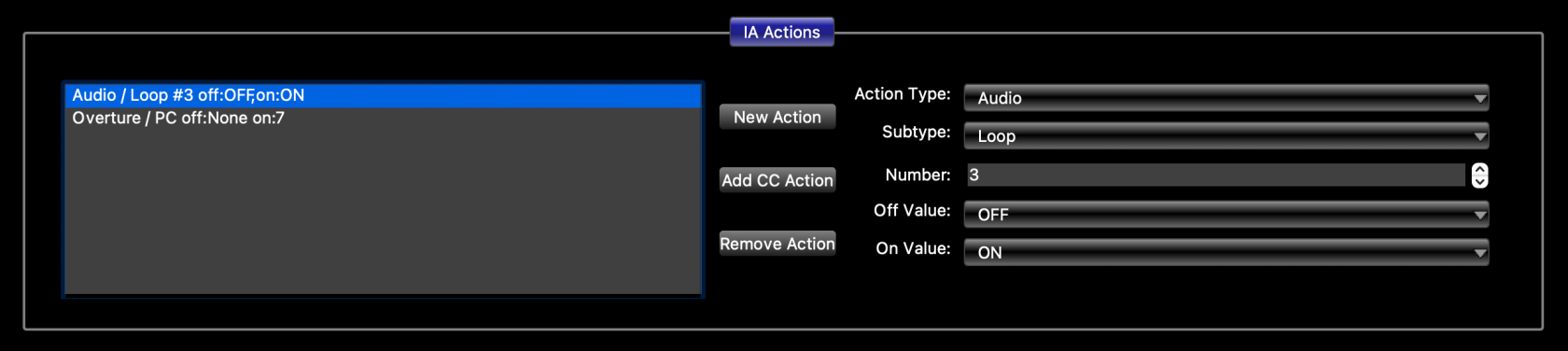](https://docs.rjmmusic.com/uploads/images/gallery/2022-02/screen-shot-2022-02-18-at-3-42-13-pm.png)
- Connect To Device
- Read Settings From Device
- Write Settings From Device
- Write Changes To Device
It's very important that each MIDI device is set to its own MIDI channel number. Which number you choose for each device doesn't matter, except that the channel number in the editor, and the channel number on the actual MIDI device should agree, and each device should have a different MIDI channel number. Each MIDI device has some method of choosing its MIDI channel - consult its user manual for instructions.
# Editing Buttons
[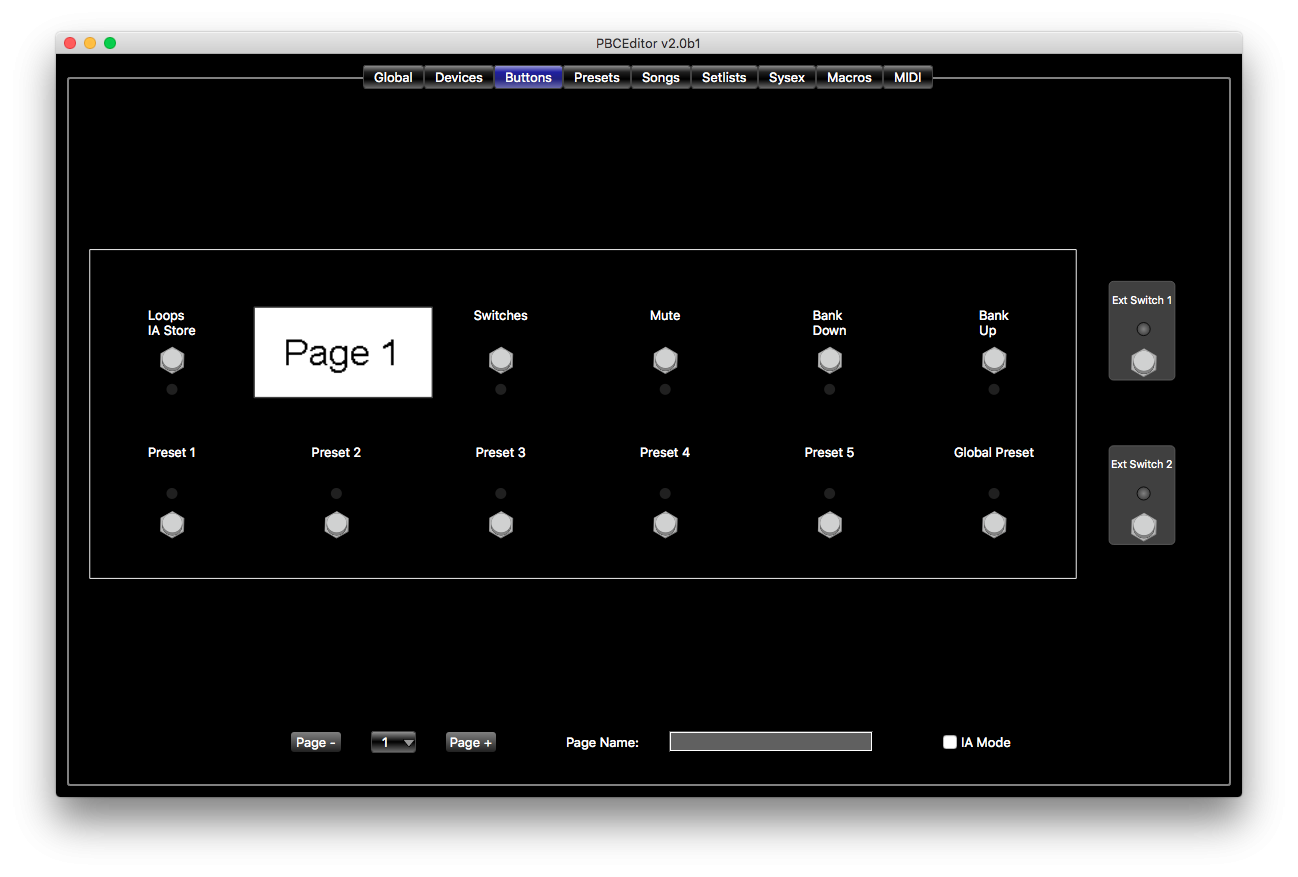](https://docs.rjmmusic.com/uploads/images/gallery/2022-02/image.png)
[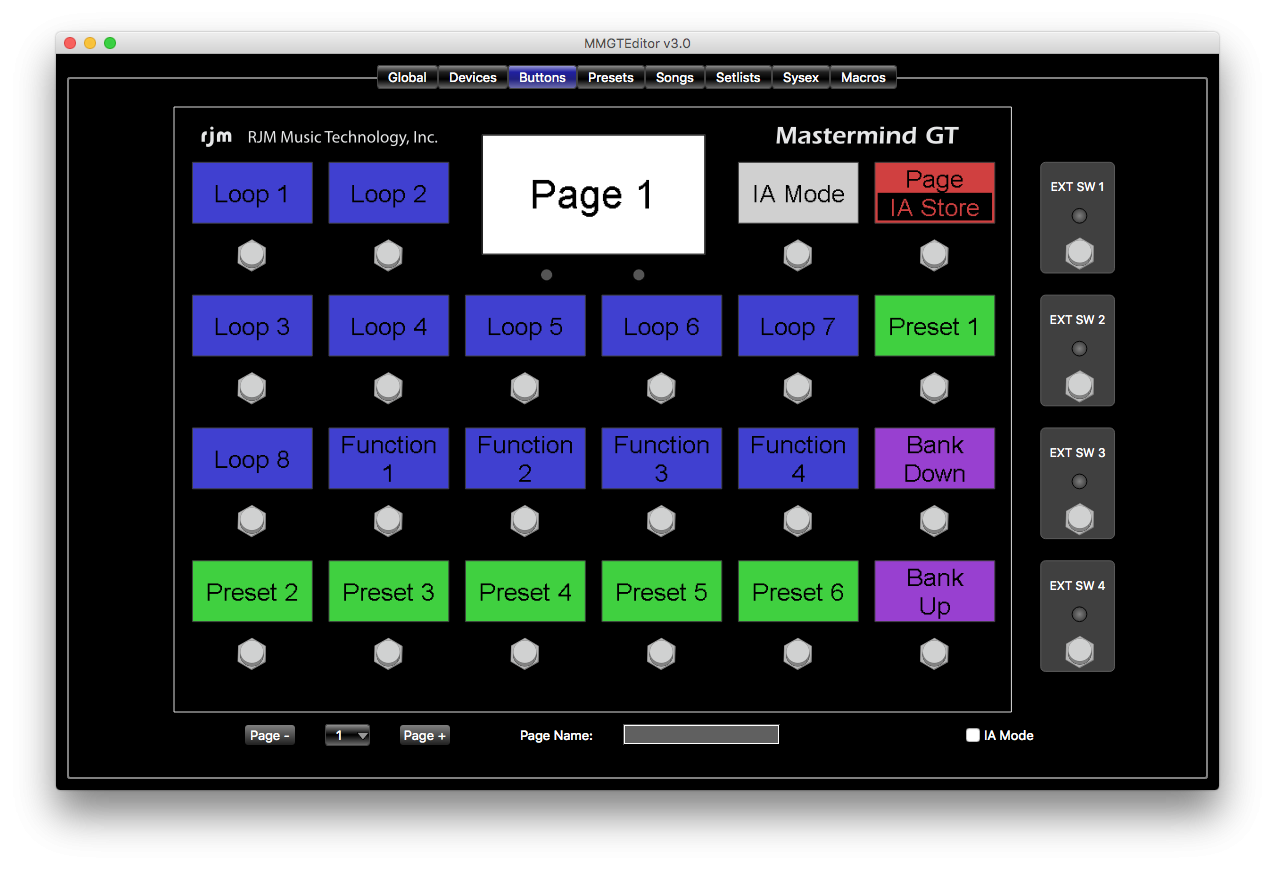](https://docs.rjmmusic.com/uploads/images/gallery/2022-02/b6Iimage.png)
One of the most important features of the Mastermind GT, LT and PBC is the ability to redefine buttons. Any button can be changed to perform any function, and you can have multiple pages of buttons with different button configurations.
Your device will have a default button configuration right out of the box, so you may wish to skip this step at first and get right to [editing presets](https://docs.rjmmusic.com/books/mastermind-editor-manual-46/page/editing-presets "V4:Editing Presets"). However, if you're ready to start changing your buttons, this is what you need to do:
In the editor, switch to the **Buttons** tab to begin working with your button configuration. You'll see a virtual display of your device, showing its current configuration. At the bottom of the screen are controls that allow you to select which of the 16 button pages is currently visible. You can also name the button page here.
## Swapping Buttons
The most basic operation is swapping the position of two buttons. Simply click and drag a button to a new position, and the source and destination buttons will switch locations. (*Note: in the Mastermind GT editor, you drag the LCD display over another display instead of the button itself*).
##
When you right-click on a button (or Ctrl-click on a Mac), a menu pops up. This menu allows you to perform basic operations on the button, including copy and paste, and also assigning the button to control a particular function on a device.
### Copy and Paste a Button
To copy and paste buttons, simply right-click on a button and select **Copy**. Then right-click on the button position where you wish to move the button to, and select **Paste**. You can copy buttons from one page to another using this method.
### Assign CCs
If you're using devices that were selected by manufacturer and model on the **Devices** page, then you can easily assign buttons to control functions on those devices. Right-click on the button (or Ctrl-click on a Mac) , then go to **Assign CC**. A submenu will pop up, showing your devices. Under those device entries, you'll see a list of functions. These could be loops on a device like an Effect Gizmo, an effect block on a multi-effect processor, or anything else that can be controlled by a MIDI continuous controller message. Select the desired function and the button will now be set to control that function.
** In the Mastermind GT editor, you can also assign an entire page of buttons to control a device. Right click anywhere on the virtual GT display, then select **Assign Default Buttons**, and in the submenu under that, select your device. Your current button page will be overwritten with buttons specific to your device. Please note that some buttons like preset and bank buttons will not be overwritten, but will have functions placed *underneath* them in [IA Mode](https://docs.rjmmusic.com/books/mastermind-editor-manual-46/page/ia-mode "V4:IA Mode").
### Other Options
The rest of the right-click menu options are described in the [Buttons Tab](https://docs.rjmmusic.com/books/mastermind-editor-manual-46/page/buttons-tab "V4:Buttons Tab") section.
## Full Button Edit
Double-clicking on a button opens up the full button edit page. This page allows you to edit all of a button' s parameters in detail. You can find more information in the [Button Edit Page](https://docs.rjmmusic.com/books/mastermind-editor-manual-46/page/button-edit-page "V4:Button Edit Page") section.
## External Switches
You can connect two external switches to a Mastermind LT or PBC and four to the Mastermind GT. These additional switches can perform any function the internal switches can, except that they're limited to having a single color LED indicator.
You can edit the external switch settings by double clicking on them in the [Buttons Tab](https://docs.rjmmusic.com/books/mastermind-editor-manual-46/page/buttons-tab "V4:Buttons Tab"). They're positioned on the right side of the virtual Mastermind display. As of the 4.0 firmware, external switches can have different settings on each page just like internal buttons can, although the external switches are set to be global by default. If you'd like to have different external switch settings on different pages, edit the external switch and turn off the **Global** checkbox.
You can also override these global settings in any preset by editing the external switch settings in the [Presets Tab](https://docs.rjmmusic.com/books/mastermind-editor-manual-46/page/presets-tab "V4:Presets Tab").
***More information can be found in [Mastering the Mastermind Episode 6, Button Editing part 1](https://youtu.be/y9Nlyw9J6NM) and [Episode 7, Advanced Button Editing](https://youtu.be/VrBMGov5eB8)***
# Editing Presets
[](http://www.rjmmusic.com/wiki/index.php?title=File:PresetsTab.png)
Presets Tab (PBC Version)
- 1 Editing
- 1.1 Preset List
- 1.2 Function Switches *(LT and PBC only)*
- 1.3 General Settings
- 1.4 PC Messages
- 1.5 IA Buttons
- 1.6 Local Button Page Edit
- 1.7 Preset Actions
- 2 More Details
## Editing
To edit presets, go to the **Presets** tab. You'll see a list of your presets on the left, three sections underneath the preset list, and three sections on the right. The typical process for editing a preset has several steps:
1. Select a preset in the **Preset List** section on the left side of the screen.
2. In the **General Settings** section, edit the preset name. There are many other parameters you can edit in this section. These are described in the [Presets Tab](https://docs.rjmmusic.com/books/mastermind-editor-manual-46/page/presets-tab "V4:Presets Tab") section.
3. In the **PC Messages** section, each device that accepts PC messages will have a box where you can specify the program number that should be sent to each device. This is how you select which preset is recalled in each one of your MIDI-capable devices. There's also a checkbox in each box - when the checkbox is not checked, no PC message will be sent to that device for the selected preset.
4. If desired, you can create specific expression pedal and external switch settings for the current preset. To override the global settings and make a preset-specific override, check the checkbox next to the pedal or switch shown in the lower left corner of the screen. Then, click the Edit button to edit the settings. Refer to the [Button Edit](https://docs.rjmmusic.com/books/mastermind-editor-manual-46/page/button-edit-page "V4:Button Edit Page") and [Expression Pedal Edit](https://docs.rjmmusic.com/books/mastermind-editor-manual-46/page/expression-pedal-edit-page "V4:Expression Pedal Edit Page") sections for details on these pages. Any changes you make on this page will apply only to the current page.
5. *(LT and PBC only)* Set the function switches to turn on or off, if desired. The function switches will start in the default state you specified in the \[\[V4::Globals Tab|Globals Tab\]\]. To change the state, go to the **Function Switches** section in the left column. Click the override button (**>**) to override the state for this preset, then click the **On / Off** button to change the function switch state.
6. *(PBC Only)* You can also set overrides for the audio features of the Mastermind PBC. To do this, select the **Audio** tab near the center of the screen. Each audio feature will have a box where you can override each feature's settings for this preset. More details can be found in the [Audio Tab](https://docs.rjmmusic.com/books/mastermind-editor-manual-46/page/audio-tab "V4:Audio Tab") section.
The other options are described in the [Presets Tab](https://docs.rjmmusic.com/books/mastermind-editor-manual-46/page/presets-tab "V4:Presets Tab") section.
### Preset List
Here, you can select which preset you wish to edit. You also can right-click (ctrl-click on a Mac) on a preset. This will pop up a menu with two options: *Copy From Preset* and *Copy To Preset*. As the names suggest, you can use these options to copy presets from one location to another.
### Function Switches *(LT and PBC only)*
This area allows you to set the state of function switches for this preset. Each switch has an override indicator ('*>**) and a state (**On* or **Off**). The state will be the same as
### General Settings
Here, you can assign a name to the preset and set a few preset-level parameters. These other parameters are discussed in more detail in the [Presets Tab](https://docs.rjmmusic.com/books/mastermind-editor-manual-46/page/presets-tab "V4:PresetsTab (page does not exist)") section.
### PC Messages
This section lets you set PC and/or bank messages that should be sent to each device when this preset is selected. PC and bank messages are used to select presets on effect processors and other MIDI devices.
Each device is listed here, with a checkbox to the left of the name. If the checkbox is not checked, no PC message will be sent to that device. Each checked device will have a PC number field and, depending on the device, possibly a bank number field. Set these to call up your desired preset on your device.
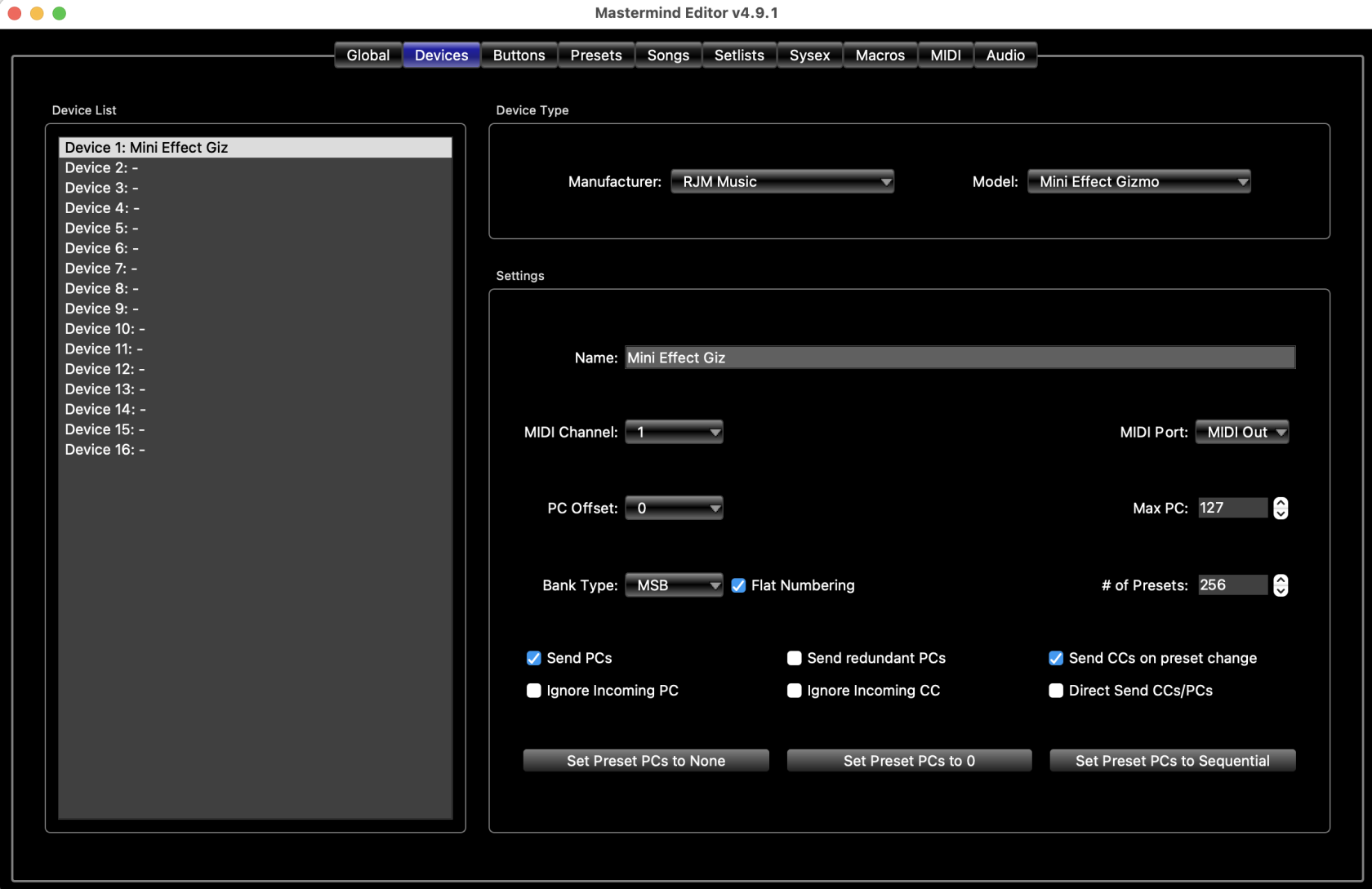
Devices that support MIDI banks can have more than 128 presets. On these devices, preset numbers can be specified in two ways - as a single number, or as a bank number and a PC number. In the [Devices Tab](https://docs.rjmmusic.com/books/mastermind-editor-manual-46/page/devices-tab "V4:Devices Tab"), you can use the **Flat Numbering** setting to control how a device's presets are displayed. When **Flat Numbering** is turned on, the bank and PC numbers are combined and displayed as a single preset number. Either setting can be used for any device, but you should choose the setting that best matches how the device operates. For example, if your device shows both bank and preset numbers, you probably should turn flat numbering off to match.
Please note that some devices (for example, Strymon pedals) do not use the standard preset numbering scheme. For these devices, consult the user's manual to see how to convert the device's preset numbering to standard MIDI preset numbering.
### IA Buttons
The bottom section, by default, contains a virtual device display that looks similar to the one in the [Buttons Tab](http://www.rjmmusic.com/wiki/index.php?title=V4:Buttons_Tab "V4:Buttons Tab"). In this mode, you can click on IA buttons to select whether the button turns on or off when this preset is selected. When you click on the button, it will change color to indicate its saved state. This allows you to program loops, effects, etc. to turn on automatically when the preset is selected.
Please note that only IA buttons that have the "'Update on Preset Change"' checkbox turned on will work in this mode. This setting is found in the [Button Edit Page](https://docs.rjmmusic.com/books/mastermind-editor-manual-46/page/button-edit-page "V4:Button Edit Page").
### Local Button Page Edit
If the **Edit Local Buttons** checkbox is selected, then the virtual device display becomes a full button editor, just like the **Buttons** tab. This allows you to edit a [button page](https://docs.rjmmusic.com/books/mastermind-editor-manual-46/page/buttons-and-pages "V4:Buttons and Pages") that's only displayed when the current preset is selected. You can have a different page of buttons - with a completely different button layout - for every preset if you wish.
### Preset Actions
Clicking the **Preset Actions** tab above the virtual device display allows you to add [Actions](https://docs.rjmmusic.com/books/mastermind-editor-manual-46/page/actions "V4:Actions") to your preset, which will allow you to send specific MIDI messages when the preset is loaded.
## More Details
More details on editing presets can be found in the [Presets Tab](https://docs.rjmmusic.com/books/mastermind-editor-manual-46/page/presets-tab "V4:Presets Tab") section.
# Editing Songs and Setlists
[](http://www.rjmmusic.com/wiki/index.php?title=File:SongsTab-V4.png)
[](http://www.rjmmusic.com/wiki/index.php?title=File:SetlistsTab.png)
This section applies only to the Mastermind GT. On the Mastermind PBC and Mastermind LT, the MIDI settings are located on a separate [MIDI Tab](https://docs.rjmmusic.com/books/mastermind-editor-manual-46/page/midi-tab "MIDI Tab").
**MIDI Receive Channel** - selects which MIDI channel the Mastermind responds to. Incoming Program Changes and Bank messages on this channel will cause the Mastermind to switch to the indicated preset. This setting also enables incoming CC (Continuous Controller) messages, which are set in the right side of this tab. Can also be set to **None** which makes it ignore all incoming Program Changes and Continuous Controller messages.
This setting is typically used when controlling the Mastermind from a computer or other MIDI controller.
You should not set MIDI Receive Channel to be the same channel as one of your other MIDI devices. This includes devices with bidirectional MIDI communication such as the Axe-Fx and Kemper Profiler. When using these devices, you don't need MIDI Receive Channel to be set to anything other than **None**.
**MIDI Clock** - selects how the Mastermind PBC handles MIDI clock messages. Possible values are:
- **None** - does not transmit or receive MIDI clock
- **Transmit** - transmits a MIDI clock signal. The tempo can be set using tap tempo button, or can be programmed in any song or preset.
- **Receive** - receives a MIDI clock signal. It will also send the incoming clock signal out the MIDI output.
- **Auto** - If an incoming MIDI clock signal is detected at the Remote In or USB port, act as if **Receive** was selected. If no incoming MIDI signal is detected, act as if **Transmit** was selected.
**Clock Pulse Limit** - If set to 0 (the default), MIDI clock will be sent normally - as a continuous stream of MIDI messages. If set to a number higher than 0, the Mastermind will send that many MIDI clock messages every time the tempo changes, then stop sending. This is similar to tap tempo, but is faster.
**Bidirectional MIDI** - when turned on, makes the MIDI Out and Remote In ports bidirectional. Pins 1 and 3 are used for the second communication channel. This is used for Remote Mode or to communicate with bidirectional MIDI devices like the Axe-Fx.
**Remote Mode** - when enabled, allows you to link two or more Masterminds together and have them all operate in unison. This makes it possible to use one Mastermind as a remote controller for another. When using this mode, the MIDI Out of each device connects to the Remote In of the next MIDI device. The last device's MIDI Out is used to connect to the rest of your MIDI devices.
**Bidirectional MIDI** should be turned on when using Remote Mode, and all Masterminds need to have the same exact settings on them in order for Remote Mode to work correctly.
**Expander** - when checked, allows you to link two Masterminds together and use them as one unit. This is different from remote mode in that you can use the audio loops in each unit independently and you can have different button configurations on both units. **Remote Mode** needs to be turned on for this parameter to be visible. **Bidirectional MIDI** needs to be on when using expander mode.
**MIDI bank selects song** - This setting changes how the Mastermind responds to MIDI bank messages. Refer to the [External MIDI Control](https://docs.rjmmusic.com/books/mastermind-editor-manual-46/page/external-midi-control "External MIDI Control") section for more details.
**Use Song Index** - This setting, along with the above setting, controls how the Mastermind responds to MIDI bank messages. Refer to the [External MIDI Control](https://docs.rjmmusic.com/books/mastermind-editor-manual-46/page/external-midi-control "External MIDI Control") section for more details.
**Merge** **(In / Out / USB)** - when one or more of these checkboxes are checked, the Mastermind takes any MIDI messages received at that port and forwards them out the MIDI Out port.
**MIDI Forward** - when enabled, the Mastermind takes any MIDI messages received at the USB Device port and forwards them out the MIDI Out port. And, any MIDI messages coming in to the Remote In port are forwarded out the USB device port. This allows you to use the Mastermind as a MIDI interface for a computer.
## Display Settings
This section applies only to the Mastermind GT
**Disabled Button Color** - selects the color that will be displayed when a button is disabled. Buttons will be disabled if they're set to control an effect processor like the Axe-Fx or Kemper Profiling amp, and the effect block the button controls is not present in the current preset.
**Show Only Song Name** - when checked, displays only the song name on the main display (not the preset name).
**Show Page Names** - when checked, displays the current button page's name in the upper line of the main display. If the current page has no name, it is not displayed.
**Bold Fonts** - when checked, sets all fonts to bold.
**Show Tempo** - When checked, the current tempo will briefly be displayed in the main LCD display when the tempo changes.
**Reverse Menus** - when checked, reverses the system menus (page menu, preset menu, song menu, etc.) so that the lowest numbered items are displayed in the bottom row instead of the top row.
## Auto Tap
Auto Tap allows you to send tempo taps to devices that support them. When the **Taps** parameter is set to a number other than zero, it will send the specified number of taps every time the tempo changes.
Auto Tap uses a [Macro](https://docs.rjmmusic.com/books/mastermind-editor-manual-46/page/macros-tab "Macros Tab") to specify what it does. On the Mastermind PBC and LT, you can use a System / Fn Switch action to send taps through a function switch output - this will work with any pedal that has a tap switch input jack. You can also use a CC, PC, Note or Sysex action to send MIDI messages for each tap.
Some devices accept momentary taps, some accept latching. If your tempos are not coming out correctly, try changing the function switch's momentary setting. If you're sending a CC message, change the action from CC Toggle to CC Momentary or vice-versa.
Each preset can specify a different a different tap division, which allows you to change from standard quarter note taps to other note types. This is described in the [Presets Tab](https://docs.rjmmusic.com/books/mastermind-editor-manual-46/page/presets "Presets Tab") section.
***For more information about Auto Tap and Tap Tempo, please see Mastering the Mastermind episode 22, [Tempo](https://youtu.be/cwXMgo5sosw)***
## Timing Settings
**First repeat** - sets the number of milliseconds needed to hold a button before the button starts repeating
**Next repeat** - sets the number of milliseconds between button repeats
**Hold time** - sets the number of milliseconds needed to hold a button before its [Hold Function](https://docs.rjmmusic.com/books/mastermind-editor-manual-46/page/button-edit-page "Button Edit Page") is activated
**Bank time** *(PBC/LT Only)* - when you press a Bank Up or Bank Down button, the Mastermind will enter bank selection mode. The main display will scroll through all of the presets in the currently selected bank, displaying the name of the presets in the bank one at a time. This parameter sets the number of milliseconds that each preset name is displayed.
**Name time** *(PBC/LT Only)* - If **Show Button Names** is turned on, this controls how many milliseconds each button name is displayed on the screen.
## Function Switch Settings
*This section applies only to the Mastermind PBC and LT*
In this section, there's one block for each function switch. Each block has a lock icon and an on/off switch. The on/off switch next to the lock icon allows you to select the state of the function switch. This state will be used for the function switch unless it's overridden by a button press or a preset change.
The lock icon controls whether it's possible to override the global on/off setting. It has three states:
- **Unlocked** *(open lock icon)* - This function switch can be changed by IA button presses and preset changes. This is the default setting.
- **Locked** *(closed lock icon)* - This function switch is locked. It can't be changed by IA buttons or preset settings. The function switch will always stay in the specified state.
- **Independent** *("I" icon)* - This function switch is independent. It will not change automatically when changing presets, but will allow you to change states by pressing an IA button.
**FNx Inv** *(invert)* - when checked, the selected function switch will be inverted - when the function switch is 'on', the relay is open, when the function switch is 'off', the relay is closed. This is also known as a 'normally closed' switch. When not checked, the switch is not inverted and 'normally open'.
**FNx Mom** *(momentary)* - when checked, the selected function switch will be momentary. That is, each time the function switches' state changes, the relay will turn on for a short period of time and then turn off. When not checked, the function switch will be latching - it will turn on or off and stay that way until the next time the function switches' state changes.
**FNx On Only** - this parameter is designed to be used in conjunction with the Momentary setting. When this setting is turned on, the function switch output will only pulse when the switch is turned on, not when the switch is turned off. This setting is used when controlling channel switching on certain amps, but should be left turned off in most cases.
**Momentary Time** - sets the number of milliseconds that momentary switches stay on before they automatically turn off.
***For more information about Function Switches, see Mastering the Mastermind episode 17, [Function Switches](https://www.youtube.com/watch?v=4fCHjuI3MPk)***
## Expression Pedals
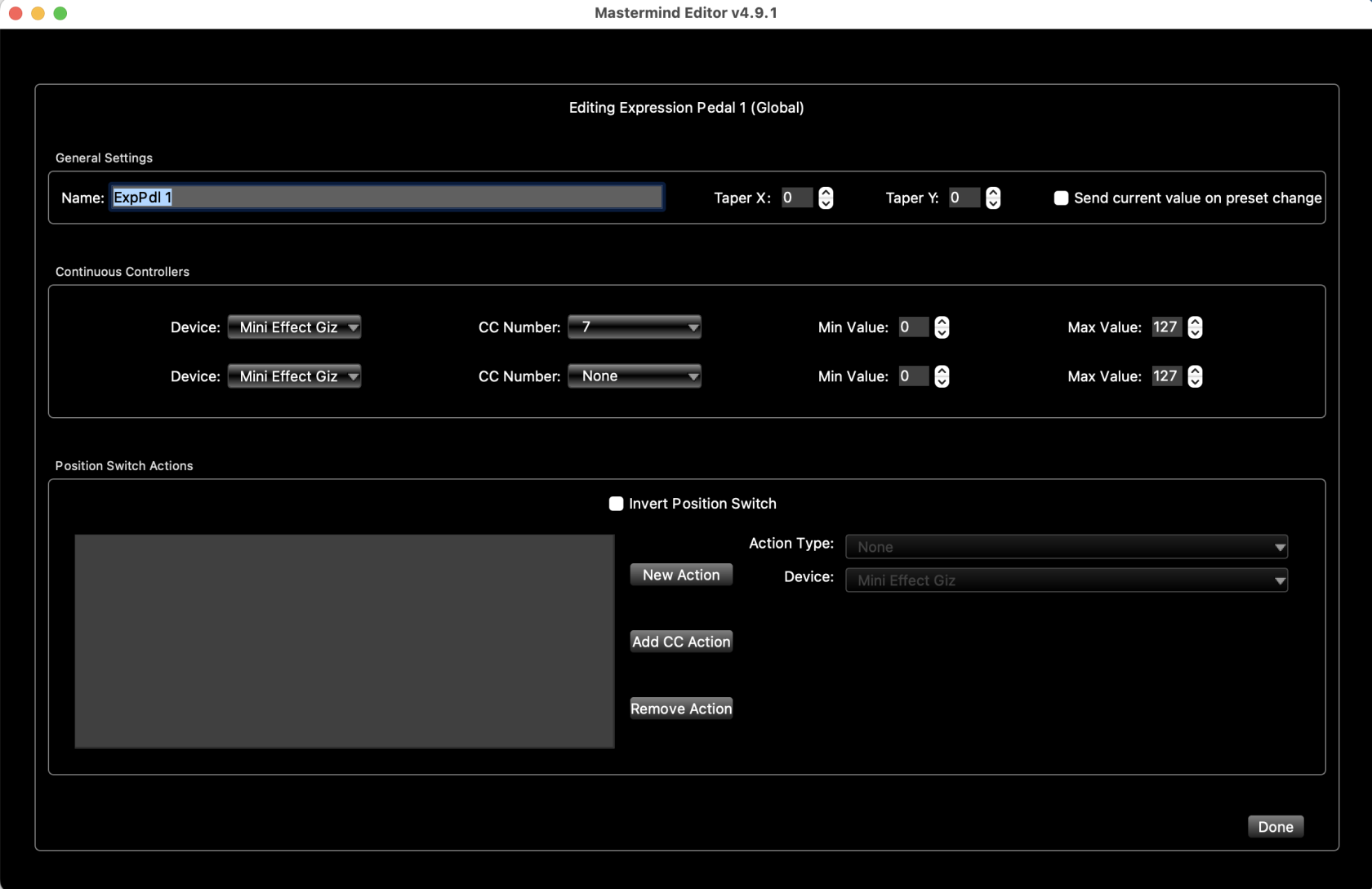
This section contains buttons that bring up the [Expression Pedal Edit Page](https://docs.rjmmusic.com/books/mastermind-editor-manual-46/page/expression-pedal-edit-page "Expression Pedal Edit Page") to edit a pedal's global settings. These are the settings used for each expression pedal, unless the settings are overridden by the current preset or using an ExpPedal [action](https://docs.rjmmusic.com/books/mastermind-editor-manual-46/page/actions "V4:Actions"). Expression pedal overrides are specified in the [Presets Tab](https://docs.rjmmusic.com/books/mastermind-editor-manual-46/page/presets "Presets Tab").
## Button Groups
The section has settings for each [button group](https://docs.rjmmusic.com/books/mastermind-editor-manual-46/page/buttons-and-pages "Buttons and Pages"). On the left, there's a list of groups. You can select a group there, and edit its parameters:
**Name** - Sets the group's name. This name is only used for reference
**Allow all buttons off** - when checked, it's possible to turn off all buttons in a group by pressing the button that's currently turned on. When not checked, one button in the group will always be turned on - pressing the currently selected button will not do anything.
**Send Off msgs** - selecting a button contained in a group will result in messages being sent by the button that's been turned on. When this setting is checked, the button that was turned off as a result of the button press will also send its messages.
There is also an action list associated with each group. This action list is run when you switch from no buttons turned on to 1 button turned on, or vice-versa. This feature requires that **Allow all buttons off** is turned on. *Example:* you have three buttons grouped together, each of which selects a different preset on an effect device. You can set up a group action to bypass the pedal when all of the buttons in the group are turned off, and to enable the pedal as soon as one of the buttons in the group is turned on.
# Devices Tab
[](https://docs.rjmmusic.com/uploads/images/gallery/2022-09/screen-shot-2022-09-05-at-12-58-09-pm.png)
Please note that in the Mastermind GT editor, you click the displays over each button to work with them. In the Mastermind editor, you click on the button itself.
You can swap buttons by simply clicking and dragging a button from one location to another.
Double clicking on a button opens up the [Button Edit Page](https://docs.rjmmusic.com/books/mastermind-editor-manual-46/page/button-edit-page "Button Edit Page"), where you can edit all of the button parameters in detail.
### Right-click menu
There is also a context menu that you can use by right-clicking on a button *(on a Mac, use Ctrl-click)*. This menu is used to provide quick access to certain settings. It has the following options:
**Type** - Sets the type of the button
**Group** - Sets the [button group](https://docs.rjmmusic.com/books/mastermind-editor-manual-46/page/buttons-and-pages "Buttons and Pages") number for this button
**Assign CC** - Allows you to choose a CC (continuous controller) message that controls a function on one of your devices. Any device that was chosen by manufacturer and model in the [Devices Tab](https://docs.rjmmusic.com/books/mastermind-editor-manual/page/devices-tab "Devices Tab") will have its CC messages available here
**Assign Default Buttons** *(GT Only)* - Sets the currently displayed button page to a page of buttons specifically designed to control one of your devices. Any device that was chosen by manufacturer and model in the [Devices Tab](https://docs.rjmmusic.com/books/mastermind-editor-manual-46/page/devices-tab "Devices Tab") will be listed as an option here. Please note that non-IA buttons such as presets and bank up/down will not be overwritten with new functions, but will change the buttons' [IA Mode](https://docs.rjmmusic.com/books/mastermind-editor-manual-46/page/ia-mode "IA Mode") functions
**Copy** and **Paste** - Allows you to copy and paste individual buttons from one location to another, even if they're on different pages
**Copy from Page** - Overwrites this page with a copy of the selected button page
**Copy to Page** - Copies this page to the selected button page, overwriting it
**Swap This Page with** - Swaps this page with the selected page
**Copy Page from Preset** - Overwrites this page with a copy of a preset's local button page. A dialog will pop up, requesting the number of the preset you wish to copy.
# Button Edit Page
Double clicking on a button in the [Buttons Tab](https://docs.rjmmusic.com/books/mastermind-editor-manual-46/page/buttons-tab "Buttons Tab") pops up the Button Edit Page. This is where you can edit all of a button's parameters.
## General Settings
The **General Settings** section contains parameters that affect all buttons.
**Button Mode** - If set to **Hold**, this button will have two functions: one when the button is pressed, and one when the button is held down for a few seconds. If set to **Normal**, only the 'button pressed' function will be available. When set to **Hold**, there is a selector at the top of the screen that allows you to choose between **Button Settings** (the 'press' function) and **Hold Function**.
**Button Type** - Selects the type of this button. Possible choices are:
- **Bank Down** - moves to the previous bank of presets
- **Bank Up** - moves to the next bank of presets
- **Device PC -** - Decrements the current program number of a specific device. This allows you to scroll through the list of presets on a specific device without affecting the other connected devices. The button will always display the device’s current PC number (and bank number if appropriate)
- **Device PC +** - Increments the current program number of a specific device. This allows you to scroll through the list of presets on a specific device without affecting the other connected devices. The button will always display the device’s current PC number (and bank number if appropriate)
- **Get Preset Names** - displays a menu that allows you to read preset names from a supported device (currently, only Fractal Audio and Kemper products)
- **IA** (instant access) - a general purpose button that can execute a list of [actions](https://docs.rjmmusic.com/books/mastermind-editor-manual/page/actions "Actions")
- **IA Mode** - Reveals the IA buttons “underneath” non-IA buttons (see [IA Mode](https://docs.rjmmusic.com/books/mastermind-editor-manual/page/ia-mode "IA Mode") section)
- **IA Store** - Stores the current on/off state of all IA butons to the current preset
- **Page/IA Store** - moves to the next button page, or, when held for 2 seconds, stores the current IA state to the current preset
- **Page Down** - displays the previous button page
- **Page Up** - displays the next button page
- **Preset** - preset selection button
- **Preset +** - moves up one preset
- **Preset –** - moves down one preset
- **Previous Preset** - switches back to the previously selected preset
- **Setup Mode** - activates setup mode
- **Update Preset Name** - reads and updates the name of the current preset from a supported device (currently, only Fractal Audio and Kemper products)
*The following button types are only available on the Mastermind GT:*
- **Label** – a button that has no function except to display text
- **Page Menu** – pops up a menu of all pages so you can quickly select one
- **Preset Menu** - pops up a menu of all presets so you can quickly select one
- **Preset Number** – pops up a number keypad, allowing you to directly type in a preset number
- **Song Menu** - pops up a menu of all songs so you can quickly select one
- **Setlist Menu** – pops up a menu of all setlists so you can quickly select one
**Global** - Sets this button to be global. This is discussed further in the [Buttons and Pages](https://docs.rjmmusic.com/books/mastermind-editor-manual-46/page/buttons-and-pages "V4:Buttons and Pages") section.
**Flash w/Tempo** - When checked, makes this button flash in time with the current system tempo.
*On Device PC - and Device PC + buttons, you can also use the following parameter:*
**Device ID** - Allows you to select which device this button affects.
*On IA buttons, you can also use the following parameter:*
**IA ID** - ID number used to identify this button. For use with the [Set IA](https://docs.rjmmusic.com/books/mastermind-editor-manual/page/set-ia "Set IA") action.
*On Bank Up, Bank Down, Page Up, Page Down and Page/IA Store buttons, you can also use the following parameters:*
**Min**, **Max** - Sets the lower and upper limits of which banks or pages this button can scroll through. If Min and Max are set to the same number, the limits are ignored.
*Note on Bank Up/Down buttons: This is typically used in song and setlist mode, where Min and Max limit which songs can be selected*
*Note on Page Up/Down buttons: If Min and Max are set to the same number, then the buttons will scroll from page 1 through the **Max Page** settings on the [Globals Tab](https://docs.rjmmusic.com/books/mastermind-editor-manual-46/page/globals-tab "Globals Tab"), plus the local preset button page if there is one.*
*On Preset buttons, you can also use the following parameter:*
**Preset Index** - Sets the [Preset Button Index](https://docs.rjmmusic.com/books/mastermind-editor-manual-46/page/preset-button-index "Preset Button Index") which controls how the presets in each bank are assigned to preset buttons.
## IA Settings
The **IA Settings** section contains settings for buttons that are set to type **IA**. These settings also apply to non-IA buttons when in [IA Mode](https://docs.rjmmusic.com/books/mastermind-editor-manual-46/page/ia-mode "IA Mode").
**Group** - sets the button group number. This is described in detail in the [Button Groups](https://docs.rjmmusic.com/books/mastermind-editor-manual-46/page/buttons-and-pages "Buttons and Pages") section.
**IA Link** - Enables the [IA Linking](https://docs.rjmmusic.com/books/mastermind-editor-manual-46/page/ia-link "IA Link") feature on this button.
**Send on Preset Change** - when checked, this button will send its MIDI messages and perform any other [Actions](https://docs.rjmmusic.com/books/mastermind-editor-manual-46/page/actions "Actions") in its list every time a new preset is selected. If not checked, the button will only send its messages when the button is pressed.
**Only ON Msgs** - when checked, this button will only send messages on preset change when the button is on. If the button is turned off after a preset change, it will not send its messages. Turning the button off by directly pressing the button will still send its messages. This parameter is only available when **Send on Preset Change** is turned on.
**Update on Preset Change** - when checked, you will be able to store the state of this button in every preset and have the button automatically change states when you select a new preset. The **IA Store** button is used to store the current button state to the current preset. You can also set the state of each IA button in the [Presets Tab](https://docs.rjmmusic.com/books/mastermind-editor-manual-46/page/presets-tab "Presets Tab"). When this setting is not checked, this button will only change states when it's pressed. This setting needs to be turned off in order to allow this IA button to be controlled by an external device like an Axe-Fx or Kemper Profiling Amp.
*Note: In most cases **Send on Preset Change** and **Update on Preset Change** are both set to On, or both set to Off.*
**CC Link** - enables [CC Linking](https://docs.rjmmusic.com/books/mastermind-editor-manual-46/page/external-midi-control "CC Linking") on this button, where incoming CC messages can control the state of the button.
**Momentary** - when checked, the button will turn on while it is held and will turn off when released. Turning this setting off returns the button to its normal setting (pressing the button toggles the button between on and off states).
**IA Cycle** - enables [IA Cycle](https://docs.rjmmusic.com/books/mastermind-editor-manual-46/page/ia-cycle "IA Cycle") support on this button. IA Cycle buttons can switch between four different settings sequentially when pressed.
**Menu** - *(GT Only)* The Menu option appears to the right of the IA Cycle checkbox, when IA Cycle is checked. This changes the presentation of the IA Cycle button from a single button that changes text and color into a pop-up menu. See the [IA Cycle](https://docs.rjmmusic.com/books/mastermind-editor-manual/page/ia-cycle "IA Cycle") page for more information.
**Remote Control** - disables local control of this button's visible state. When turned on, pressing the button will make the button send its messages but will not switch the button from off to on or vice-versa. This is typically used in conjunction with **CC Link** when working with a computer application - the GT or PBC sends messages to the computer, and the computer sends messages back indicating what the button's new state should be.
## Normal Mode
The **Normal Mode** section controls the appearance of the button when in normal mode (not [IA Mode](https://docs.rjmmusic.com/books/mastermind-editor-manual-46/page/ia-mode "IA Mode")). On the Mastermind GT, it will display a visual representation of the button's LCD.
**Button Name** - Sets the name of the button. This name is displayed on the Mastermind GT, but is only for informational purposes on the Mastermind PBC and LT.
**On Color** - Sets the color of the button to be displayed when the button is on.
**Off Color** - Sets the color of the button to be displayed when the button is off.
## IA Mode
The **IA Mode** section controls the appearance of the button when in [IA Mode](https://docs.rjmmusic.com/books/mastermind-editor-manual-46/page/ia-mode "IA Mode"). This section is not shown if the button's type is set to **IA**.
**IA Name** - Sets the name of the button when in [IA Mode](https://docs.rjmmusic.com/books/mastermind-editor-manual-46/page/ia-mode "IA Mode"). This name is displayed on the Mastermind GT, but is only for informational purposes on the Mastermind PBC and LT.
**IA On Color** - Sets the color of the button to be displayed when the button is on in [IA Mode](https://docs.rjmmusic.com/books/mastermind-editor-manual-46/page/ia-mode "IA Mode").
**IA Off Color** - Sets the color of the button to be displayed when the button is off in [IA Mode](https://docs.rjmmusic.com/books/mastermind-editor-manual-46/page/ia-mode "IA Mode").
## IA Actions
This section allows you to assign [Actions](https://docs.rjmmusic.com/books/mastermind-editor-manual-46/page/actions "Actions") to the button. These [Actions](https://docs.rjmmusic.com/books/mastermind-editor-manual-46/page/actions "Actions") are executed when an IA button is pressed, or when any button is pressed when in [IA Mode](https://docs.rjmmusic.com/books/mastermind-editor-manual-46/page/ia-mode "IA Mode").
## Hold Functions
By setting **Button Mode** to *Hold*, a selector appears at the top of the screen allowing you to select **Button Settings** and **Hold Functions**. **Button Settings** displays the normal button settings as described above. Clicking **Hold Functions** displays a different set of parameters that are used when the button is held for a certain period of time, instead of pressing the button quickly. The amount of time that the button needs to be held to activate the hold function can be configured in the [Globals Tab](https://docs.rjmmusic.com/books/mastermind-editor-manual-46/page/globals-tab "Globals Tab").
Most of the settings available for the normal button function are also available for the hold function.
The hold function of a button has two colors you can set: **On Color** and **Both Color**. **On Color** is the color displayed when the normal function is off and the hold function is on. **Both Color** is the color displayed when both the normal function and hold function are on. You can specify *None* for a color to disable the color and show the normal function's color instead.
** There is a **Show Name** checkbox in General Settings. When it's turned on, the normal function name is displayed on top and the hold function name is displayed on the bottom. There is also a setting **Active In IA Mode Only** which only allows the hold function to operate when in [IA Mode](https://docs.rjmmusic.com/books/mastermind-editor-manual/page/ia-mode "IA Mode").
***For more information on button settings, check out Mastering the Mastermind episodes 7 and 8, [Advanced Button Editing](https://youtu.be/VrBMGov5eB8) and [IA Button Options](https://youtu.be/mRvAk7Fr6RA).***
# IA Cycle
IA buttons have an **IA Cycle** setting that allows them to become IA Cycle buttons. When enabled, the button can be configured to switch between up to 4 different button states, each with a different name (on the Mastermind GT) and color.
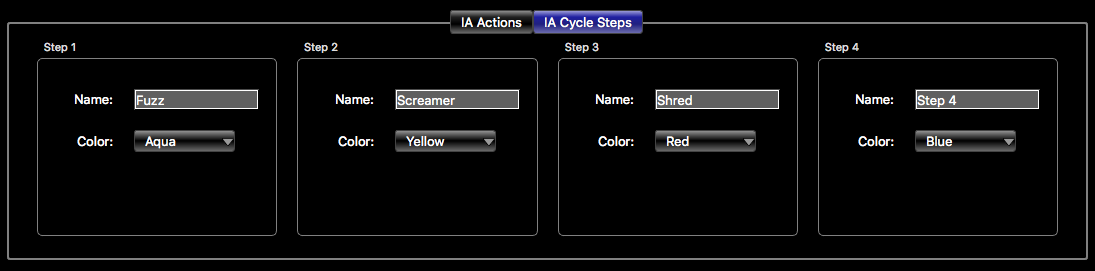
When **IA Cycle** is checked, the **IA Actions** box at the bottom of the window gets a second tab labeled **IA Cycle Steps**. Clicking on this tab displays a box for each of the four steps. In each step's box, you can select a name and color for the step.
[](https://docs.rjmmusic.com/uploads/images/gallery/2022-08/image.png)
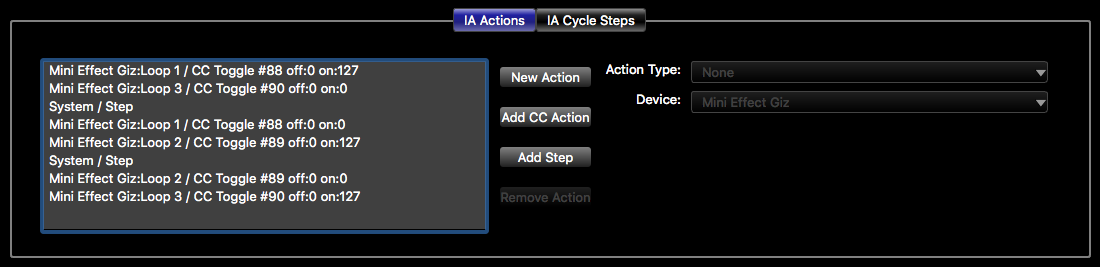
To use these steps, switch back to the **IA Actions** tab. Insert [Actions](https://docs.rjmmusic.com/books/mastermind-editor-manual/page/actions "Actions") in the list like you normally would, but use a **System / Step** action as a divider between steps. (You can press the **Add Step** button to quickly add a Step action to the end of the list.) You should not put a Step action at the end of the list - it would be interpreted as the beginning of another step. If you put more than three Step actions in the list, that will result in more than the maximum of four steps. Any step after the fourth is ignored.
[](https://docs.rjmmusic.com/uploads/images/gallery/2022-08/D0vimage.png)
When using an IA Cycle button, only the On values of each action are used - the Off values are ignored.
The images on this page show an example configuration that switches between pedals in the first three loops of a Mini Effect Gizmo. Pressing the IA cycle button switches from one pedal loop to the next. Only three steps are defined in the action list, so the name and color settings for the fourth step are ignored. Note that each step turns on one loop and turns off the previously selected loop. This prevents the case where more than one loop is on at the same time.
#### IA Cycle Menu (GT Only)
On the Mastermind GT, there's an additional option that appears to the right of the IA Cycle checkbox simply called **Menu**. Checking this changes the behavior of the IA Cycle button. When checked, pressing the button pops up a menu in the GT buttons, with each button representing a cycle step. This allows you to see all of your cycle steps at the same time, and select from them with a single button press.
***For more information about IA Cycle buttons, please see Mastering the Mastermind episode 13, [IA Cycle Buttons](https://youtu.be/p3twcIzVgF8)***
# Presets Tab
[ ](https://docs.rjmmusic.com/uploads/images/gallery/2022-08/screen-shot-2022-08-04-at-10-28-55-am.png)
The Presets tab allows you to configure each of the 768 [presets](https://docs.rjmmusic.com/books/mastermind-editor-manual-46/page/presets "Presets") on your Mastermind.
## Preset List
In the left column, there is a list of all of your [presets](https://docs.rjmmusic.com/books/mastermind-editor-manual-46/page/presets "Presets"), including the [Global Preset](https://docs.rjmmusic.com/books/mastermind-editor-manual-46/page/presets "Presets"). Selecting a preset in this column displays all of the preset's parameters in the other sections of the window.
### Reordering and Copying Presets
You can rearrange presets within the Preset List by dragging and dropping them.
If you right click on a preset within the list (or Ctrl-click on a Mac), you will be presented with a popup menu with two options: **Copy to Preset** and **Copy from Preset**. This will allow you to copy the currently selected preset to another preset, or overwrite the current preset with settings copied from another preset. When you select an option, a dialog box will pop up, requesting a preset number that will be where the selected preset will be copied to or copied from.
## General Settings
This is where you set up the most basic settings for each preset.
**Name** - Sets the preset's name
**Local Page** - When checked, activates a [button page](https://docs.rjmmusic.com/books/mastermind-editor-manual-46/page/buttons-and-pages "Buttons and Pages") that is specific to this preset. When the preset is selected, the page is loaded and replaces button page 16.
**Alt Preset** - Allows you to set an [alternate preset](https://docs.rjmmusic.com/books/mastermind-editor-manual-46/page/presets "Presets") for this preset. You can specify a preset number here, or you can also choose one of the following special values by pressing the "..." button to the right:
- **Global** - Recall the [Global Preset](https://docs.rjmmusic.com/books/mastermind-editor-manual-46/page/presets "Presets")
- **None** - This preset has no alternate preset
- **Previous** - Switch to the previously selected preset instead of selecting a specific alternate preset
**Show Page** - Selects which button page should be displayed when the preset is loaded. Please note that this setting has no effect if **Auto Page Select** in the [Globals Tab](https://docs.rjmmusic.com/books/mastermind-editor-manual-46/page/globals-tab "Globals Tab") is not turned on. Possible values are:
- **1-16** - Displays the selected page
- **Local Page** - Displays the local button page (if the **Local Page** checkbox is turned on)
- **Same Page** - Stay on the same page - don't change pages
**On Color** - Selects which color a preset button displays when this preset is active. It can be set to any color or *None*, which means this preset doesn't have a special color - it uses the preset button's default **On Color** setting.
**Off Color** - Selects which color a preset button displays when this preset is ***not*** active. It can be set to any color or *None*, which means this preset doesn't have a special color - it uses the preset button's default Off Color setting.
**Tempo** - Sets the tempo of this preset. if **MIDI Clock** is set to *Transmit* or *Auto*, then this new tempo will be transmitted to connected MIDI devices. If [Auto Tap](https://docs.rjmmusic.com/books/mastermind-editor-manual/page/globals-tab "Auto Tap") is active, this will also result in a new tempo being sent. You can also specify one of these special tempo values:
- **Off** - Don't send tempo for this preset
- **Same** - Keep the same tempo
- **Song** - Use the current song's tempo
**Auto Tap Div** - Sets a tap tempo division for the [Auto Tap](https://docs.rjmmusic.com/books/mastermind-editor-manual-46/page/globals-tab "Auto Tap") feature. The tap division changes the rate at which the taps are sent to the connected device. The default setting, *Qtr* means that the tap tempo is processed as quarter notes - the taps are sent at the exact BPM rate specified in the preset. The other settings speed up the taps to match the new note type. Possible values are *Qtr*, *Dot8th*, *QtrTrip*, *8thTrip* and *16th*.
**MIDI Clk Div** - Sets a tap tempo division for the MIDI clock output. The tap division changes the rate at which the MIDI clock signal is sent to the connected devices. The default setting, *Qtr* means that the tap tempo is processed as quarter notes - the taps are sent at the exact BPM rate specified in the preset. The other settings speed up the clock to match the new note type. Possible values are *Qtr*, *Dot8th*, *QtrTrip*, *8thTrip* and *16th*.
## PC Messages
This section is where you specify the PC and (optionally) bank messages that are being sent to your MIDI devices. Any MIDI devices defined in [Devices Tab](https://docs.rjmmusic.com/books/mastermind-editor-manual-46/page/devices-tab "V4:Devices Tab") that have **Send PCs** turned on will be listed here.
Each device has a checkbox. When the checkbox is not checked, no PC or bank message will be sent to that device for this preset.
If the checkbox is checked, you can specify a program or PC number for each device. If the device has bank support, you will also be able to specify a bank number. These will be sent to your device when the preset is loaded.
Some devices have *flat numbering*, where the PC and bank number are combined into one preset number. These devices will not have a space for entering the bank number, and will allow you to type in a PC number that's larger than 127 (the standard MIDI limit for PC numbers). For these devices, the Mastermind GT and PBC will automatically calculate the correct PC and bank numbers for you. You can set a device to use flat numbering (or not) using the **Flat Numbering** setting on the [Devices Tab](https://docs.rjmmusic.com/books/mastermind-editor-manual-46/page/devices-tab "Devices Tab").
## Buttons/Preset Actions/Audio
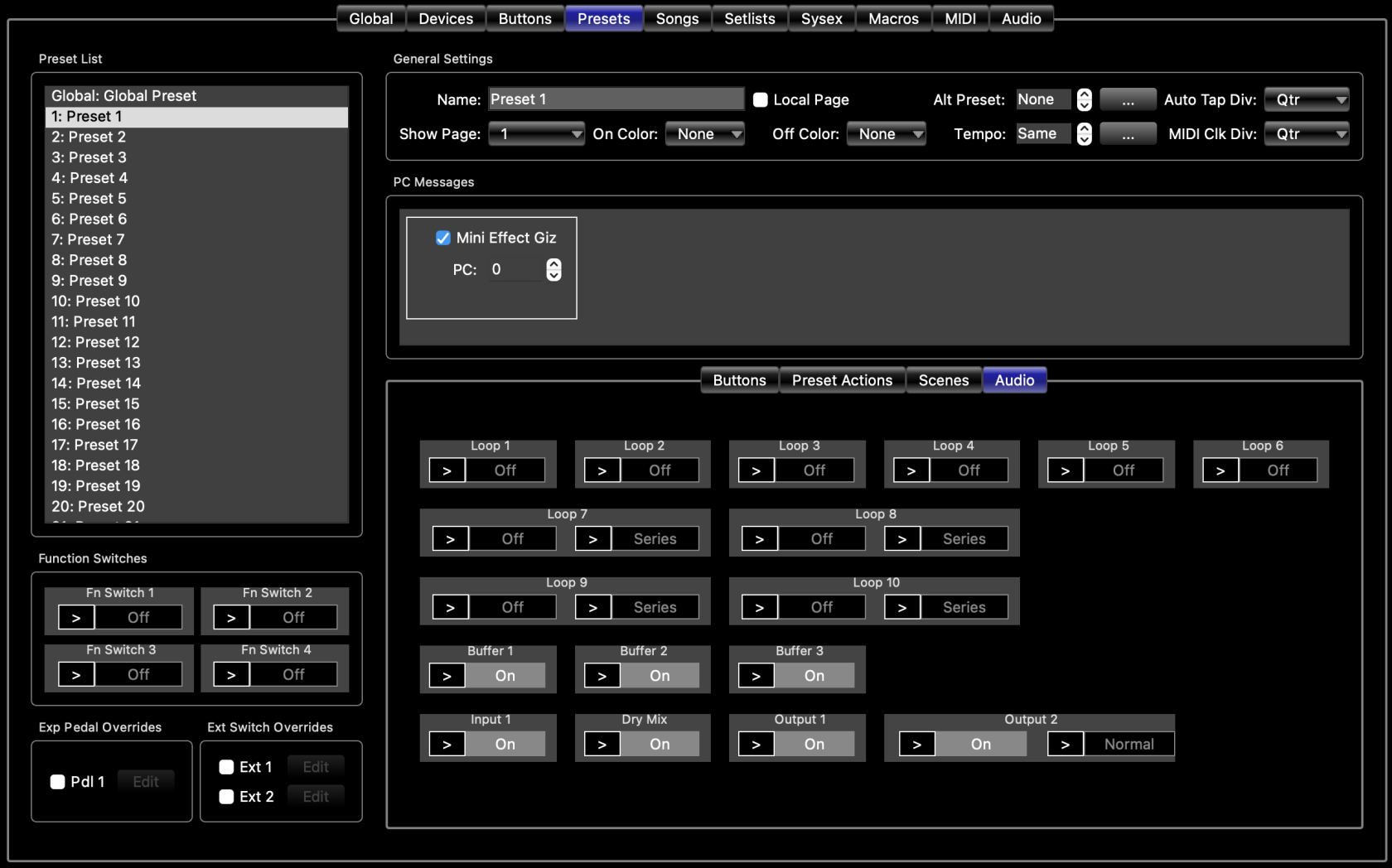
The **Buttons/Preset Actions/Audio** section has three or four functions: it allows you to set the state of your IA buttons in this preset, it allows you to edit the buttons on the preset's local button page (if the preset has one), and also allows you to edit [Actions](https://docs.rjmmusic.com/books/mastermind-editor-manual-46/page/actions "V4:Actions") for this preset. On the Mastermind PBC, you can also use the **Audio** section to set preset overrides for loops, buffers and other audio features.
### IA Buttons
When the selector at the top of the box is set to **IA Buttons**, you can edit your IA buttons and local button page. The **Edit Local Buttons** checkbox selects which mode you are in.
When **Edit Local Buttons** is not checked, you are editing the state of your IA buttons. Click on any IA button to turn it on or off. That state will be stored in the currently selected preset, and the button's state will be automatically recalled when the preset is loaded. Only buttons that have **Update on Preset Change** turned on will be able to be edited in this mode.
When **Edit Local Buttons** is checked, you are now editing the buttons in the local button page. Double click on any button to edit it. The editor screen works exactly like the [Button Edit Page](https://docs.rjmmusic.com/books/mastermind-editor-manual/page/button-edit-page "Button Edit Page"), but changes only apply to this preset's the local button page.
Checking **Edit Local Buttons** will automatically enable the local button page for the preset and set the **Show Page** parameter to button page 16, which is the local button page.
Like the [Buttons Tab](https://docs.rjmmusic.com/books/mastermind-editor-manual-46/page/buttons-tab "Buttons Tab"), this section has page and [IA Mode](https://docs.rjmmusic.com/books/mastermind-editor-manual-46/page/ia-mode "IA Mode") controls that allow you to view all of your buttons in both normal and [IA Mode](https://docs.rjmmusic.com/books/mastermind-editor-manual-46/page/ia-mode "IA Mode").
### Preset Actions
When the selector at the top of the box is set to **Preset Actions**, you can edit the list of [Actions](https://docs.rjmmusic.com/books/mastermind-editor-manual-46/page/actions "Actions") associated with this preset. Each preset can have up to 10 [Actions](https://docs.rjmmusic.com/books/mastermind-editor-manual-46/page/actions "Actions") associated with it. These [Actions](https://docs.rjmmusic.com/books/mastermind-editor-manual-46/page/actions "Actions") are executed when the preset is loaded. The preset actions are executed after the PC messages are sent, but before the IA buttons send their messages.
Preset Actions only have On values, and those values are sent when the preset is loaded.
[](https://docs.rjmmusic.com/uploads/images/gallery/2022-08/screen-shot-2022-08-04-at-10-43-20-am.png)
You should not set MIDI Receive Channel to be the same channel as one of your other MIDI devices. This includes devices with bidirectional MIDI communication such as the Axe-Fx and Kemper Profiler. When using these devices, you don't need MIDI Receive Channel to be set to anything other than **None**.
**MIDI Clock** - selects how the Mastermind PBC handles MIDI clock messages. Possible values are:
- **None** - does not transmit or receive MIDI clock
- **Transmit** - transmits a MIDI clock signal. The tempo can be set using tap tempo button, or can be programmed in any song or preset.
- **Receive** - receives a MIDI clock signal. It will also send the incoming clock signal out the MIDI output.
- **Auto** - If an incoming MIDI clock signal is detected at the MIDI input or USB port, act as if **Receive** was selected. If no incoming MIDI signal is detected, act as if **Transmit** was selected.
**Clock Pulse Limit** - If set to 0 (the default), MIDI clock will be sent normally - as a continuous stream of MIDI messages. If set to a number higher than 0, the Mastermind will send that many MIDI clock messages every time the tempo changes, then stop sending. This is similar to tap tempo, but is faster.
**Bidirectional MIDI** - when turned on, makes the MIDI Out and MIDI In ports bidirectional. Pins 1 and 3 are used for the second communication channel. This is used for Remote Mode or to communicate with bidirectional MIDI devices like the Axe-Fx.
**Remote Mode** - when enabled, allows you to link two or more Masterminds together and have them all operate in unison. This makes it possible to use one Mastermind as a remote controller for another. When using this mode, the MIDI Out of each device connects to the MIDI In of the next MIDI device. The last device's MIDI Out is used to connect to the rest of your MIDI devices.
**Bidirectional MIDI** should be turned on when using Remote Mode, and all Masterminds need to have the same exact settings on them in order for Remote Mode to work correctly.
**Expander** - when checked, allows you to link two Masterminds together and use them as one unit. This is different from remote mode in that you can use the audio loops in each unit independently and you can have different button configurations on both units. **Remote Mode** needs to be turned on for this parameter to be visible. **Bidirectional MIDI** needs to be on when using expander mode.
**MIDI bank selects song** - This setting changes how the Mastermind responds to MIDI bank messages. Refer to the [External MIDI Control](https://docs.rjmmusic.com/books/mastermind-editor-manual-46/page/external-midi-control "External MIDI Control") section for more details.
**Use Song Index** - This setting, along with the above setting, controls how the Mastermind responds to MIDI bank messages. Refer to the [External MIDI Control](https://docs.rjmmusic.com/books/mastermind-editor-manual-46/page/external-midi-control "External MIDI Control") section for more details.
**Merge** **(In / Out / USB)** - when one or more of these checkboxes are checked, the Mastermind takes any MIDI messages received at that port and forwards them out the MIDI Out port.
**MIDI Forward** - when enabled, the Mastermind takes any MIDI messages received at the USB Device port and forwards them out the MIDI Out port. And, any MIDI messages coming in to the MIDI In port are forwarded out the USB device port. This allows you to use the Mastermind as a MIDI interface for a computer.
## Incoming CC Messages
This section allows you to set which incoming CC messages control each audio function of the Mastermind. Each loop, buffer, output, signal and function switch is listed here and has a space where you can select which CC number controls that function. **MIDI Receive Channel** needs to be set to something other than **None** for the Mastermind to respond to incoming CC messages.
All of the possible CC messages for the Mastermind series are displayed. When configuring a Mastermind LT, all of the CCs relating to audio features such as loops, buffers and outputs will be visible and able to be edited, but these CCs will have no effect.
Control using incoming CC messages is explained in more detail in the [External MIDI Control](https://docs.rjmmusic.com/books/mastermind-editor-manual-46/page/external-midi-control "External MIDI Control") section.
# Audio Tab
The Audio tab allows you to edit global settings for the audio features of the Mastermind PBC. This tab is not available on the Mastermind LT or GT.
*The Click Stopper is a mute circuit that helps to mute the click or pop that the loop relays make when they switch.
It's only found on the Mastermind PBC/10*
**Clickstopper L7** - enables the Click Stopper that is located before loop 7.
**Clickstopper L10** - enables the Click Stopper that is located after loop 10.
**CS Pre Time** - sets the number of milliseconds that the Click Stopper is activated before the relays are allowed to switch. Default is 4 milliseconds.
**CS Post Time** - sets the number of milliseconds that the Click Stopped stays on after the relays switch. Default is 8 milliseconds.
## Tuner Settings
**Enable Tuner** - When checked, the internal tuner is enabled, when not checked it is disabled. This is useful when using an external, MIDI capable tuner in an Axe-Fx or Kemper Profiling Amp.
**Tuner Mode** - Allows you to select the operation mode of the tuner. Allowable values are *Chromatic* and *Guitar*. *Guitar* has additional options specific to tuning a guitar.
**Tuner Frequency** - Sets the center frequency of the internal tuner. Allowable values are 432 to 445 Hz.
### Guitar Mode Parameters
*These parameters are only available when **Tuner Mode** is set to* Guitar.
**Capo** - Allows you to set a tuning offset for the whole guitar. The offset is specified in semitones.
**String Offsets (1-6)** - Allows you to set a tuning offset for each string. The offsets are specified in cents.
## Audio Features
This is where you can specify the default settings for each audio feature: loops, buffers, inputs, outputs and signals.
Each audio feature has an On/Off button and a padlock icon. The On/Off button sets the default state of the audio feature. The factory default is that all loops are off, and everything else is on, but a click on this page can change that.
### Defaults
The default settings on this page affect all presets on the PBC, except those that have overrides set. You can set up an override in a few ways:
- On the PBC itself, use the buttons to turn a loop, buffer, etc. on or off and hold the Loops button to store (or the Function button on the PBC/6X). This will store the new state as an override for the current preset.
- On the "Buttons" section of the [Presets Tab](https://docs.rjmmusic.com/books/mastermind-editor-manual-46/page/presets-tab "Presets Tab"), click the button that controls the desired loop, buffer, etc. This changes the state of the audio feature and saves it as an override for the current preset.
- On the '"Audio" section of the [Presets Tab](https://docs.rjmmusic.com/books/mastermind-editor-manual-46/page/presets-tab "Presets Tab"), click the override ">" button to activate the override, then click the on/off button to set the new state of the audio feature.
You can remove overrides from a preset in two ways:
- You can remove the overrides on every preset for a specific audio feature. On the Audio Tab, hold the Shift key and click the On/Off button for the desired audio feature. The editor will ask for confirmation, then if you respond yes, will clear all overrides.
- On the '"Audio" section of the [Presets Tab](https://docs.rjmmusic.com/books/mastermind-editor-manual-46/page/presets-tab "V4:Presets Tab"), click the override ">" button to turn it off. This disables the override for the current preset.
### Global Lock
The padlock icon turns on the global lock for an audio feature. This sets the audio feature to ignore all preset overrides - the audio feature will stay in this state and no button press, MIDI message or anything else can change that state. Turning off the lock icon will re-enable any user specified overrides in your presets and allow the audio feature to be turned on or off once again.
### Independent Loops
Loops can also be be set to be *independent*. Independent loops ignore preset overrides like locked loops do, but you can still change the loop manually by using Instant Access buttons. Clicking the padlock icon for a loop will cycle through three states: unlocked, locked, and independent. Independent mode is indicated by an "I" icon.
### Other Settings
In addition to setting the on/off states of each feature, you can also set the series/parallel state of loops that support parallel routing, and can also select whether those loops preserve delay and reverb trails when switching the loop off. The trails setting only has an effect when the loop is set to parallel.
Output B has an Invert setting that allows you to set the phase inversion of the output.
***For more information about audio settings, please see Mastering the Mastermind episode 12, [PBC Audio Settings](https://www.youtube.com/watch?v=reWRww8erEY&lc=Ugzj32fdpFZmVKgZ_Wh4AaABAg)***
# Expression Pedal Edit Page
[](https://docs.rjmmusic.com/uploads/images/gallery/2022-09/screen-shot-2022-09-05-at-12-31-13-pm.png)
The Mastermind always remembers the last bank numbers you send it, so if you use more than one bank of presets, you should always send a bank select CC before sending a PC to the Mastermind. Otherwise, you may end up with unexpected results where the incorrect preset is selected.
#### Setlist active, MIDI Bank Selects Song turned on
If you are using a setlist, and the **MIDI Bank Selects Song** parameter (found in the [Globals Tab](https://docs.rjmmusic.com/books/mastermind-editor-manual/page/globals-tab "Globals Tab") on the GT or in the [MIDI Tab](https://docs.rjmmusic.com/books/mastermind-editor-manual/page/midi-tab "MIDI Tab") on the LT or PBC) is turned on, the Bank MSB and Bank LSB are combined to select a song out of the current setlist. The number is calculated as follows:
(Bank MSB x 128) + Bank LSB = song number
The setting **Use Song Index** determines how the song number is interpreted:
If **Use Song Index** is turned on: the song number indicates the song's position in the current setlist (0 = first song in the current setlist, 1 = second song in the setlist, etc.)
If **Use Song Index** is *not* turned on: the song number indicates the actual song number to load (0 = load song #0, 1 = load song #2)
The PC number selects which preset within the song is selected (0 = first preset in song, 1 = second preset in song, etc.)
***Please note:**** If you try to select a song that's not in the current setlist, or a preset that isn't in the selected song, the Mastermind will ignore the request and remain on the current song and preset.*
**Examples (Use Song Index is turned on):**
To select the first preset in the third song:
CC#32, value 2
PC#0
To select the fourth preset in song number 170:
CC#0, value 1
CC#32, value 41
PC#3
**Examples (Use Song Index is turned off):**
To select the first preset in song #12:
CC#32, value 12
PC#0
To select the third preset in song number 260:
CC#0, value 2
CC#32, value 4
PC#2
#### Setlist active, MIDI Bank Selects Song turned off
If you are using a setlist, and the **MIDI Bank Selects Song** parameter is turned off, the bank MSB, LSB and program numbers are combined to create the desired preset number. The formula used is the same as in the **Setlist=None** section above.
Upon receiving bank and program change messages, the Mastermind will find the first song that contains the resulting preset and will load that song and preset.
#### Other settings
In MIDI settings, there is also a **Swap Bank MSB/LSB** setting that reverses how the Mastermind handles bank CCs. With this checked, CC#0 is now Bank LSB and CC#32 is now Bank MSB. Typically, this setting should be turned off, but may be turned on for compatibility with certain devices.
### CC Link: Controlling buttons using incoming CC messages
It’s also possible to control IA buttons using CC messages sent from a computer or other MIDI controller. Each IA button has a parameter **CC Link** that enables this feature. When you turn **CC Link** on, incoming CCs are compared against the first action in each button’s action list. If the incoming CC matches the channel and CC number assigned to the first action in the action list, the button will update based on the CC’s value (0-63 = off, 64-127 = on).
For example, if the first action on a button is *Device 1 / CC Toggle #14*, and MIDI device 1 is set to channel 4, then incoming CCs on MIDI channel 4 with CC number 14 will control the button.
Please note that each device has an **Ignore Incoming CCs** setting, which when set, will disable the CC Link feature for that device.
When an IA button is activated due to an incoming CC message, the button will execute all of its actions except the first one in the list (the CC that triggered the button in the first place). This helps to avoid endless loops between the Mastermind and computer.
#### Remote Control
The **Remote Control** setting works with CC Link. When **Remote Control** is checked, the button still sends its actions as normal, but the button's visible state doesn't change. Only incoming CCs can change the visible state of the button. This feature is used with DAW software like Ableton which allows bidirectional synchronization of Mastermind buttons and Ableton controls.
### Individual Loop and Switch Control using CC Messages
On the Mastermind LT and PBC, you can also assign CC messages to control individual loops, function switches, outputs and buffers. The **MIDI Rx Ch** parameter is used to choose the MIDI channel these CCs are received on. The default CC numbers are as follows: 
| Function | CC Number | Values |
|---|
| Loop 1 off/on | 48 | 0-63 off, 64-127 on |
| Loop 2 off/on | 49 | 0-63 off, 64-127 on |
| Loop 3 off/on | 50 | 0-63 off, 64-127 on |
| Loop 4 off/on | 51 | 0-63 off, 64-127 on |
| Loop 5 off/on | 52 | 0-63 off, 64-127 on |
| Loop 6 off/on | 53 | 0-63 off, 64-127 on |
| Loop 7 off/on | 54 | 0-63 off, 64-127 on |
| Loop 8 off/on | 55 | 0-63 off, 64-127 on |
| Loop 9 off/on | 56 | 0-63 off, 64-127 on |
| Loop 10 off/on | 57 | 0-63 off, 64-127 on |
| Loop 7 series/parallel | 58 | 0-63 series, 64-127 parallel |
| Loop 8 series/parallel | 59 | 0-63 series, 64-127 parallel |
| Loop 9 series/parallel | 60 | 0-63 series, 64-127 parallel |
| Loop 10 series/parallel | 61 | 0-63 series, 64-127 parallel |
| Buffer 1 disable/enable | 62 | 0-63 off, 64-127 on |
| Buffer 2 disable/enable | 63 | 0-63 off, 64-127 on |
| Buffer 3 disable/enable | 64 | 0-63 off, 64-127 on |
| Function Switch 1 off/on | 65 | 0-63 off, 64-127 on |
| Function Switch 2 off/on | 66 | 0-63 off, 64-127 on |
| Function Switch 3 off/on | 67 | 0-63 off, 64-127 on |
| Function Switch 4 off/on | 68 | 0-63 off, 64-127 on |
| Output A/Left off/on | 69 | 0-63 off, 64-127 on |
| Output B/Right off/on | 70 | 0-63 off, 64-127 on |
| Output B Invert | 71 | 0-63 normal, 64-127 invert |
| Mute | 72 | 0-63 muted, 64-127 not muted |
| Dry Send to Mixer | 73 | 0-63 muted, 64-127 not muted |
| Tuner | 74 | 0-63 off, 64-127 on |
| Page | 75 | 0-15 (page number minus 1) |
These CC numbers can be changed using the settings in the [MIDI Tab](https://docs.rjmmusic.com/books/mastermind-editor-manual/page/midi-tab "MIDI Tab").
#### Mastermind GT Special CCs
There are a few special CC numbers that affect the Mastermind GT as well. These only function if **MIDI Receive Channel** is set to something other than *None*, and the CC is received on the channel indicated by **MIDI Receive Channel**.
| **Function** | **CC Number** | **Values** |
| Bank Down | 117 | any |
| Bank Up | 118 | any |
| Select Page Number
| 119 | 0 = page 1, 1 = page 2, etc. |
# IA Link
IA Linking is a feature that allows you to link two or more buttons together so that turning one on turns the other on, and turning one off turns the other off. This is especially useful if you have more than one button that controls the same function. For example, you may have a button that controls a particular pedal on more than one button page. If you turn the pedal on on the first page, you want the button on the second page also to turn on so that it accurately reflects the state of the pedal.
## Enabling IA Link
To enable this feature for a button, turn on the **IA Link** checkbox, which is found on the [Button Edit Page](https://docs.rjmmusic.com/books/mastermind-editor-manual/page/button-edit-page "Button Edit Page"). Once this is enabled, any button that has the same first action in its [action list](https://docs.rjmmusic.com/books/mastermind-editor-manual/page/actions "Actions") as the current button does will be linked. Pressing one button will affect the state of the other. The linked button will not send its messages or execute its [Actions](https://docs.rjmmusic.com/books/mastermind-editor-manual/page/actions "Actions"), however.
## Other IA Link Features
Turning IA Link on also does a couple of other things:
- Buttons with a System / Preset action as their first action will automatically be highlighted when the preset is selected, even if the preset was selected without using the button. (For example from an incoming program change message, or a standard Preset button).
- On the Mastermind LT and PBC, IA Link also links IA buttons to the actual state of the internal loops, function switches, etc. It's best to always keep IA Link turned on for any button that controls one of these features.
# Preset Button Index
## Preset Button Order
Preset buttons do not have a specific number assigned to them. Instead, they display one of the presets within the current bank. Pressing the **Bank Up** and **Bank Down** buttons changes the bank, which in turn changes which presets are assigned to the preset buttons. (For a description of presets and banks, please refer to the [Buttons and Pages](https://docs.rjmmusic.com/books/mastermind-editor-manual/page/buttons-and-pages "Buttons and Pages") section).
When a new bank is selected, the Mastermind has to decide which preset is assigned to each preset button. It examines the buttons in a specific order, and assigns the first preset in the bank to the first preset button it finds. The second preset button it finds gets the second preset in the bank, etc. The order in which it scans through the buttons depends on your device:
**Mastermind GT** - starts in the upper left corner, and goes from left to right. When it reaches the end of a row, it goes down one row and starts at the left side of the row, scanning to the right again.
**Mastermind LT** - starts in the lower left corner (the 1 button), then scans to the right. When it finishes that row, it goes up to the Bank Down button, and scans to the right again. Finally, the Function button is scanned.
**Mastermind PBC/10** - starts in the lower left corner (the 1 button), then scans to the right. When it finishes that row, it goes up to the Switches button, and scans to the right again. Finally, the Loops button is scanned.
**Mastermind PBC/6X** - starts in the lower left corner (the 1 button), then scans to the right. When it finishes that row, it goes up to the Functions button, and scans to the right again.
## Order Reassignment with Preset Index
If for some reason, you want to change the order of how presets are assigned to buttons, you can do this with the **Preset Index** setting found on Preset buttons. By default, these are all set to 0, which means that the standard order (as described above) is used. If you assign different Preset Index numbers to the buttons, the presets will be assigned in that order - number 1 will receive the first preset in the bank, number 2 will receive the second preset in the bank, etc.
If two buttons have the same Preset Index, the buttons will be assigned different presets using the standard order to decide which one receives which preset. Skipping Preset Index numbers has no effect - if, for example, you assign preset indexes 1, 10, 57, 93 and 100 to your preset buttons, those buttons will be assigned presets 1, 2, 3, 4 and 5 within your bank.
If you need to assign a button that accesses a specific preset regardless of which bank you're in, you can use an [IA button](https://docs.rjmmusic.com/books/mastermind-editor-manual/page/buttons-and-pages "Buttons and Pages") with a System / Preset [action](https://docs.rjmmusic.com/books/mastermind-editor-manual/page/actions "V4:Actions").
***For more information on Preset buttons and the Preset Index setting, please see Mastering the [Mastermind Episode 6, Button Editing part 1](https://youtu.be/y9Nlyw9J6NM), and [Episode 7, Advanced Button Editing](https://youtu.be/VrBMGov5eB8)***
# Set IA
**Set IA** is an [action](https://docs.rjmmusic.com/books/mastermind-editor-manual/page/actions "Actions") that allows you to automatically turn one or more IA buttons on or off. This makes it possible to create complex interactions between buttons. For example, you could program a button that turns on a fuzz pedal to turn off all buttons that control overdrives. Or, turn on a delay whenever you activate any overdrive (but not have the delay button affect the overdrives).
Set IA works on any button that has **Type** set to *IA.* IA buttons have an **IA ID** parameter - this is how you identify and refer to buttons. IA IDs can range from 0 to 255. Setting the ID to 0 means that the button will never be affected by Set IA actions. Any other value allows it to be controlled by Set IA.
Once you have IA IDs assigned, you can use a System / Set IA action to control those buttons. Here's an example:
*System / Set IA #4 off:ON on:OFF*
Putting this action on an IA button will make it control any IA buttons that have IA ID #4. When this button is turned on, it will turn off all buttons with IA ID #4. When this button is turned off, it will turn on all buttons with IA ID #4.
The Mastermind will only allow a button to be switched once during a Set IA action, and it won't allow a button to control itself. This prevents the Mastermind from being stuck in an infinite loop.
# Tutorials
# New Page
# Create a Button Page that Controls a Device
If you have a device that has multiple effect blocks, effect loops or other MIDI-controllable switches, you can create a page of buttons that control this device. You don't necessarily need to devote a whole page to a device, but this tutorial will assume that you want to use a whole page.
## Create the Button Page
1. First, go to the [Globals Tab](http://www.rjmmusic.com/wiki/index.php?title=V4:Globals_Tab "V4:Globals Tab") and find the **Max Button Page** parameter. This shows the highest numbered page that you're using right now. Increment this number by 1. If you're replacing an existing page, you can skip this step.
[](http://www.rjmmusic.com/wiki/index.php?title=File:MaxButtonPage.png)
2. Now, go the the [Buttons Tab](http://www.rjmmusic.com/wiki/index.php?title=V4:Buttons_Tab "V4:Buttons Tab"). Use the page selector at the bottom of the tab to select the page that you wish to work on.
[](http://www.rjmmusic.com/wiki/index.php?title=File:PageSelector.png)
3. Right click on a button (Ctrl-click on a Mac), and choose **Assign CC**, then your device name from the submenu that pops up, and the function you wish to control from the submenu that pops up.
[](http://www.rjmmusic.com/wiki/index.php?title=File:ButtonsTabAssignCC.png)
4. Repeat the above step for each button you wish to assign.
## Accessing the Page
Now that you have a button page created, you need to be able to display that page when you need it. There are several ways to do this, and you can use one or more methods in the same configuration.
### Page Up/Page Down Buttons
**Page Up** and **Page Down** buttons are the simplest way to access your button pages. These allow you to scroll from page to page as you tap the button. The Mastermind GT has a **Page / IA Store** button by default, which is a **Page Up** button that has a second function when held. The Mastermind PBC does not have Page Up or Down buttons by default, but you can use them if you like.
To assign a Page Up or Page Down button, do the following:
1. Go the [Buttons Tab](https://docs.rjmmusic.com/books/mastermind-editor-manual/page/buttons-tab "Buttons Tab")
2. Use the page selector at the bottom of the window to select the button page where you want to have this page button.
[](http://www.rjmmusic.com/wiki/index.php?title=File:PageSelector.png)
3. Double-click the button you wish to convert to a Page button
4. Set the **Button Type** option to **Page Up**, **Page Down** or **Page/IA Store** as desired.
[](http://www.rjmmusic.com/wiki/index.php?title=File:GeneralSettingsPageUp.png)
5. If desired, you can set the **Min Page** and **Max Page** limits. This controls the range of pages that the page button accesses. If you want the Page buttons to access all button pages, set the Min Page and Max Page parameters to the same number.
Usually, you will want a page button to be global. That is, the button should appear on every button page so you can always switch to the next page. To do this, turn on the **Global** checkbox.
Click **Done** when you're finished editing the button.
###
On the Mastermind GT, you can have a **Page Menu** button. When pressed, it displays a list of your available button pages which you can use to select the page to view.
To assign a Page Menu button, do the following:
1. Go the [Buttons Tab](https://docs.rjmmusic.com/books/mastermind-editor-manual/page/buttons-tab "Buttons Tab")
2. Use the page selector at the bottom of the window to select the button page where you want to have this page button.
[](http://www.rjmmusic.com/wiki/index.php?title=File:PageSelector.png)
3. Double-click the button you wish to convert to a Page Menu button
4. Set the **Button Type** option to **Page Menu**.
[](http://www.rjmmusic.com/wiki/index.php?title=File:GeneralSettingsPageMenu.png)
If you want this button to appear on every button page, turn on the **Global** checkbox.
Click **Done** when you're finished editing the button.
### IA Button with Page Action
You can use an IA Button to jump to a specific button page instead of cycling through a range of pages, like the Page Up/Down buttons do.
To set up an IA button to jump to a page, follow these steps:
1. Go the [Buttons Tab](https://docs.rjmmusic.com/books/mastermind-editor-manual/page/buttons-tab "Buttons Tab")
2. Use the page selector at the bottom of the window to select the button page where you want to have this page button.
[](http://www.rjmmusic.com/wiki/index.php?title=File:PageSelector.png)
3. Double-click the button you wish to convert to a IA button
4. Set the **Button Type** option to **IA**
5. Turn off all checkboxes except **Momentary**, which should be turned on. A button that selects a page should never turn on and stay on, it should only trigger when pressed. This is why **Momentary** is selected here.
6. In the **IA Actions** section at the bottom of the window, select any actions that are in the gray box to the left. Select each line and click **Remove Action** to delete it.
7. Now, click **New Action**, and set **Action Type** to **System** and **Subtype** to **Page**
8. Set the page number to the desired page.
[](http://www.rjmmusic.com/wiki/index.php?title=File:PageAction.png)
# Set up a Group of Buttons that Recall Presets on a Device
You can set up some buttons that change presets on a specific MIDI device, without the need to change presets on your Mastermind. There are two ways to do this. The instructions assume you are putting the buttons on an existing button page. If you need to add a new button page, follow the instructions found in the [Create a Button Page that Controls a Device](https://docs.rjmmusic.com/books/mastermind-editor-manual/page/create-a-button-page-that-controls-a-device "Create a Button Page that Controls a Device") section.
## Using Device PC+ and Device PC- Buttons
The **Device PC+** and **Device PC-** button types will let you move through the presets on a single MIDI device. Each press advances up or down one preset as appropriate, sending a MIDI PC (Program Change) message to the device.
On the Mastermind GT, the button will display the current PC number (and bank number, if appropriate) for the device.
On the Mastermind LT and PBC, the current PC and bank will be displayed briefly in the main display if you have the **Show Button Names** global parameter turned on.
To set buttons to Device PC+ and PC- types, go to the [Buttons Tab](https://docs.rjmmusic.com/books/mastermind-editor-manual/page/buttons-tab "Buttons Tab") and double-click the button you wish to edit. The [Button Edit Page](https://docs.rjmmusic.com/books/mastermind-editor-manual/page/button-edit-page "Button Edit Page") will pop up. Set the button type to **Device PC +** or **Device PC -**. Below the **Button Type** dropdown menu, there will now be a **Device** dropdown menu. Select the device you wish to control using this menu.
[](http://www.rjmmusic.com/wiki/index.php?title=File:Device_PC_Example.png)
You can repeat this, creating PC+ and PC- buttons for any devices you wish.
### Saving Device PC+/PC- Settings
When you use an IA Store button, the PC number for each device will be stored to the current Mastermind preset. When you return to that preset, the devices will return to the last saved PC. In the PBC/10's factory configuration, holding the Loops button will store your IA state and PC numbers. On the LT and PBC/6X, holding the Function button will store IA state and PC numbers.
## Using IA buttons
You can also set things up so that there are individual buttons that select specific presets on a device. You can do this with IA buttons.
First, go to the [Buttons Tab](https://docs.rjmmusic.com/books/mastermind-editor-manual/page/buttons-tab "Buttons Tab") and double click the first button you wish to have control your device. The [Button Edit Page](https://docs.rjmmusic.com/books/mastermind-editor-manual/page/button-edit-page "Button Edit Page") will pop up.
First, set the **Button Type** parameter to **IA**.
[](http://www.rjmmusic.com/wiki/index.php?title=File:IA_Button_Type.png)
Next, set the **Group** parameter to a group number that is not being used elsewhere.
[](http://www.rjmmusic.com/wiki/index.php?title=File:Set_Group_Number.png)
Also make sure the **Send on Preset Change** and **Update on Preset Change** checkboxes are checked. This allows you to save the on/off state of these buttons in each preset and have the device PC automatically recalled when you change presets.
Next, in the [Actions](http://www.rjmmusic.com/wiki/index.php?title=V4:Actions "V4:Actions") section at the bottom of the window, delete any actions in the action list on the left side. Click on each action, then click Remove Action to delete it.
Now, click **New Action**. Set **Action Type** to PC. Set **Device** to the desired device. Set **PC Number (off)** to None, and set **PC Number (on)** to the PC number you want this button to select on the device.
[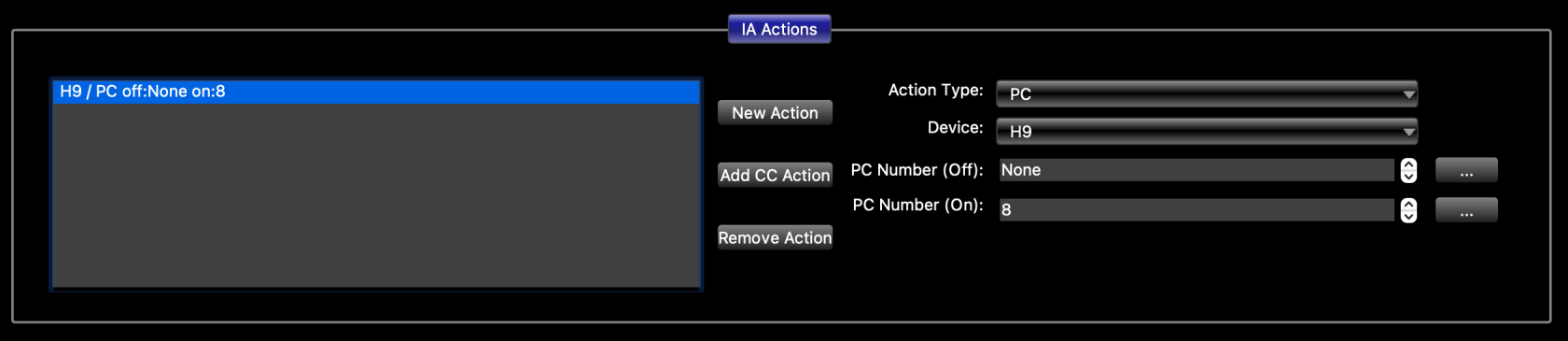](https://docs.rjmmusic.com/uploads/images/gallery/2022-09/screen-shot-2022-09-16-at-9-52-36-am.png)
Repeat this for each button you wish to set up to send PCs to your device. Make sure that each of these buttons is assigned the same group number. This will insure that only one button in the group can be on at any time.
The last thing you need to do is set up the button group, This is done in the [Globals Tab](https://docs.rjmmusic.com/books/mastermind-editor-manual/page/globals-tab "Globals Tab"). At the bottom left of the window, select the group number you used for your buttons, then make sure that **Send Off messages** and **Allow all buttons off** are not checked for that group.
[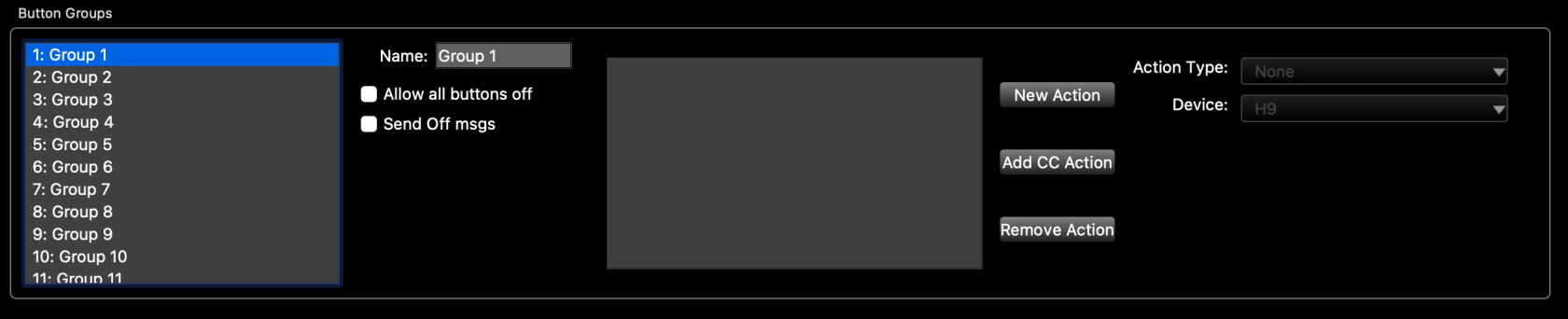](https://docs.rjmmusic.com/uploads/images/gallery/2022-09/screen-shot-2022-09-16-at-9-54-38-am.png)
### Option 1: Send a different preset when all buttons are turned off
You can set up the button group so that pressing the currently selected button again will turn the button off, switching the effect device to a certain preset. Usually, this is a preset that has no effect or is bypassed, but it can be any preset you wish.
First, in the [Globals Tab](https://docs.rjmmusic.com/books/mastermind-editor-manual/page/globals-tab "Globals Tab"), turn the **Allow all buttons off** checkbox ON for the group you're using. Make sure **Send Off msgs** is still turned off.
Next, edit each of the buttons you're using to control the device. Go the action list, select the PC action and set the **PC Number (off)** parameter to the number of the desired preset.
### Option 2: Turn a loop off when all buttons are turned off
This option allows you to automatically control an effect loop so that it turns on when you select a preset on the device. The loop will turn off when you press the currently selected button again, turning the button off.
First, go to the [Globals Tab](https://docs.rjmmusic.com/books/mastermind-editor-manual/page/globals-tab "Globals Tab"), turn the **Allow all buttons off** checkbox ON for the group you're using. Make sure **Send Off msgs** is still turned off.
Next, you need to edit the buttons to perform the desired action:
*To send a MIDI CC message to a switcher:* On each button that controls your effect, add a second action that sends the desired CC number. If your switcher is in the device database, you can press **Add CC Action**, then select your device and CC number in the window that pops up.
[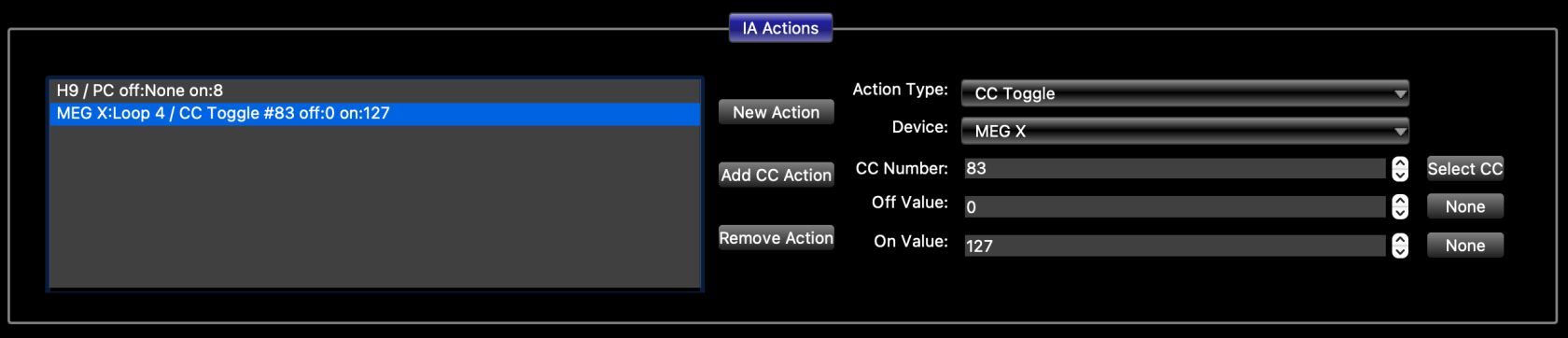](https://docs.rjmmusic.com/uploads/images/gallery/2022-09/screen-shot-2022-09-16-at-9-58-17-am.png)
*To control a Mastermind PBC loop:* In each button that controls your effect, add a second action that controls the loop containing your effect. Press **New Action**, then set **Action Type** to **Audio**. Next, set **Subtype** to **Loop** and set your loop number. Make sure **Off Value** is set to OFF and **On Value** is set to ON.
[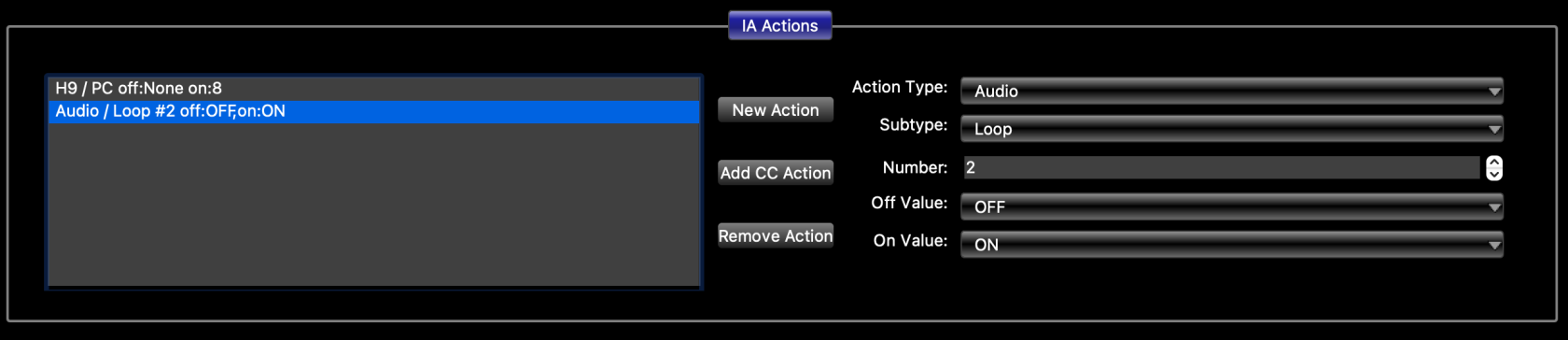](https://docs.rjmmusic.com/uploads/images/gallery/2022-09/screen-shot-2022-09-16-at-9-59-20-am.png)