# Set up a Group of Buttons that Recall Presets on a Device
You can set up some buttons that change presets on a specific MIDI device, without the need to change presets on your Mastermind. There are two ways to do this. The instructions assume you are putting the buttons on an existing button page. If you need to add a new button page, follow the instructions found in the [Create a Button Page that Controls a Device](https://docs.rjmmusic.com/books/mastermind-editor-manual/page/create-a-button-page-that-controls-a-device "Create a Button Page that Controls a Device") section.
## Using Device PC+ and Device PC- Buttons
The **Device PC+** and **Device PC-** button types will let you move through the presets on a single MIDI device. Each press advances up or down one preset as appropriate, sending a MIDI PC (Program Change) message to the device.
On the Mastermind GT, the button will display the current PC number (and bank number, if appropriate) for the device.
On the Mastermind LT and PBC, the current PC and bank will be displayed briefly in the main display if you have the **Show Button Names** global parameter turned on.
To set buttons to Device PC+ and PC- types, go to the [Buttons Tab](https://docs.rjmmusic.com/books/mastermind-editor-manual/page/buttons-tab "Buttons Tab") and double-click the button you wish to edit. The [Button Edit Page](https://docs.rjmmusic.com/books/mastermind-editor-manual/page/button-edit-page "Button Edit Page") will pop up. Set the button type to **Device PC +** or **Device PC -**. Below the **Button Type** dropdown menu, there will now be a **Device** dropdown menu. Select the device you wish to control using this menu.
[](http://www.rjmmusic.com/wiki/index.php?title=File:Device_PC_Example.png)
You can repeat this, creating PC+ and PC- buttons for any devices you wish.
### Saving Device PC+/PC- Settings
When you use an IA Store button, the PC number for each device will be stored to the current Mastermind preset. When you return to that preset, the devices will return to the last saved PC. In the PBC/10's factory configuration, holding the Loops button will store your IA state and PC numbers. On the LT and PBC/6X, holding the Function button will store IA state and PC numbers.
## Using IA buttons
You can also set things up so that there are individual buttons that select specific presets on a device. You can do this with IA buttons.
First, go to the [Buttons Tab](https://docs.rjmmusic.com/books/mastermind-editor-manual/page/buttons-tab "Buttons Tab") and double click the first button you wish to have control your device. The [Button Edit Page](https://docs.rjmmusic.com/books/mastermind-editor-manual/page/button-edit-page "Button Edit Page") will pop up.
First, set the **Button Type** parameter to **IA**.
[](http://www.rjmmusic.com/wiki/index.php?title=File:IA_Button_Type.png)
Next, set the **Group** parameter to a group number that is not being used elsewhere.
[](http://www.rjmmusic.com/wiki/index.php?title=File:Set_Group_Number.png)
Also make sure the **Send on Preset Change** and **Update on Preset Change** checkboxes are checked. This allows you to save the on/off state of these buttons in each preset and have the device PC automatically recalled when you change presets.
Next, in the [Actions](http://www.rjmmusic.com/wiki/index.php?title=V4:Actions "V4:Actions") section at the bottom of the window, delete any actions in the action list on the left side. Click on each action, then click Remove Action to delete it.
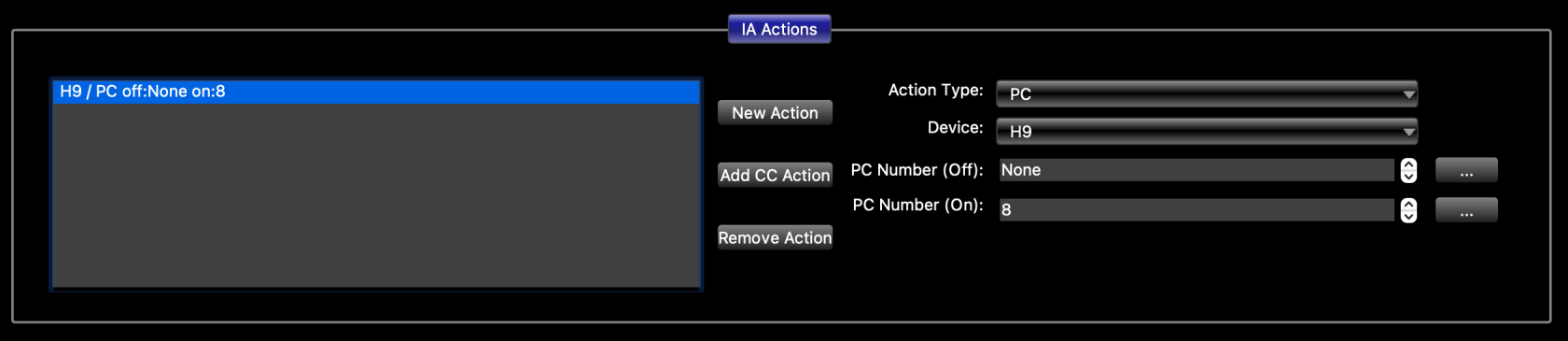
Now, click **New Action**. Set **Action Type** to PC. Set **Device** to the desired device. Set **PC Number (off)** to None, and set **PC Number (on)** to the PC number you want this button to select on the device.
[](https://docs.rjmmusic.com/uploads/images/gallery/2022-09/screen-shot-2022-09-16-at-9-52-36-am.png)
Repeat this for each button you wish to set up to send PCs to your device. Make sure that each of these buttons is assigned the same group number. This will insure that only one button in the group can be on at any time.
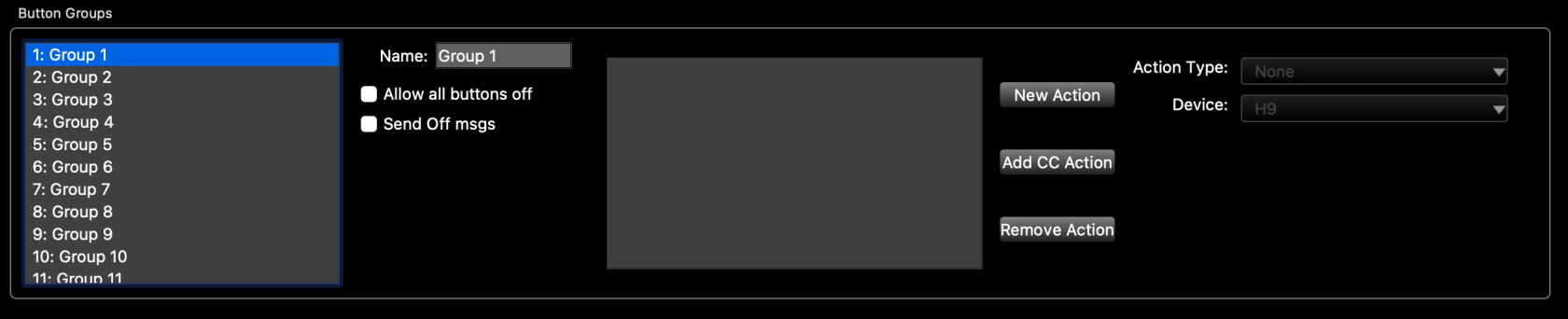
The last thing you need to do is set up the button group, This is done in the [Globals Tab](https://docs.rjmmusic.com/books/mastermind-editor-manual/page/globals-tab "Globals Tab"). At the bottom left of the window, select the group number you used for your buttons, then make sure that **Send Off messages** and **Allow all buttons off** are not checked for that group.
[](https://docs.rjmmusic.com/uploads/images/gallery/2022-09/screen-shot-2022-09-16-at-9-54-38-am.png)
### Option 1: Send a different preset when all buttons are turned off
You can set up the button group so that pressing the currently selected button again will turn the button off, switching the effect device to a certain preset. Usually, this is a preset that has no effect or is bypassed, but it can be any preset you wish.
First, in the [Globals Tab](https://docs.rjmmusic.com/books/mastermind-editor-manual/page/globals-tab "Globals Tab"), turn the **Allow all buttons off** checkbox ON for the group you're using. Make sure **Send Off msgs** is still turned off.
Next, edit each of the buttons you're using to control the device. Go the action list, select the PC action and set the **PC Number (off)** parameter to the number of the desired preset.
### Option 2: Turn a loop off when all buttons are turned off
This option allows you to automatically control an effect loop so that it turns on when you select a preset on the device. The loop will turn off when you press the currently selected button again, turning the button off.
First, go to the [Globals Tab](https://docs.rjmmusic.com/books/mastermind-editor-manual/page/globals-tab "Globals Tab"), turn the **Allow all buttons off** checkbox ON for the group you're using. Make sure **Send Off msgs** is still turned off.
Next, you need to edit the buttons to perform the desired action:
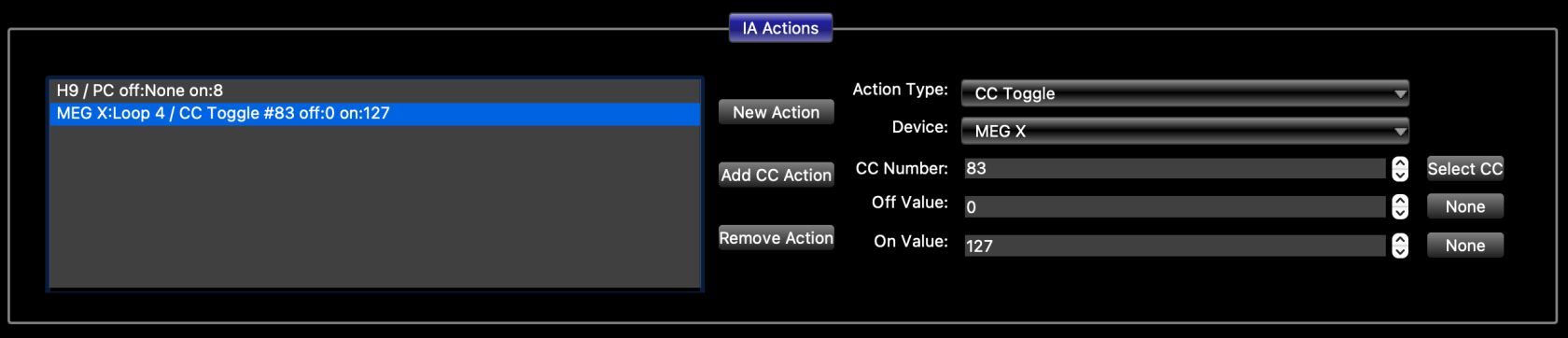
*To send a MIDI CC message to a switcher:* On each button that controls your effect, add a second action that sends the desired CC number. If your switcher is in the device database, you can press **Add CC Action**, then select your device and CC number in the window that pops up.
[](https://docs.rjmmusic.com/uploads/images/gallery/2022-09/screen-shot-2022-09-16-at-9-58-17-am.png)
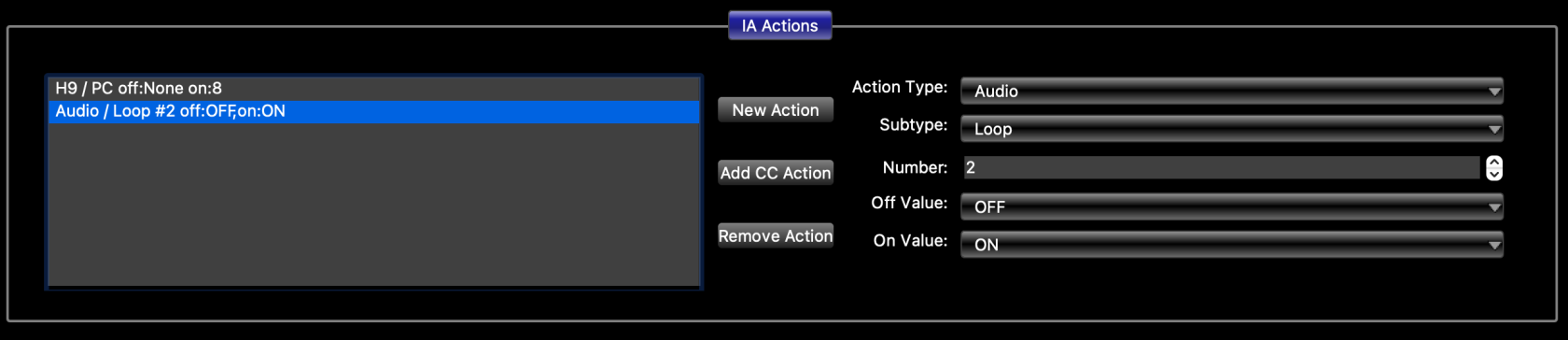
*To control a Mastermind PBC loop:* In each button that controls your effect, add a second action that controls the loop containing your effect. Press **New Action**, then set **Action Type** to **Audio**. Next, set **Subtype** to **Loop** and set your loop number. Make sure **Off Value** is set to OFF and **On Value** is set to ON.
[](https://docs.rjmmusic.com/uploads/images/gallery/2022-09/screen-shot-2022-09-16-at-9-59-20-am.png)